# Manage subscription plans for your bot
> Review and create subscription plans for your Telegram subscription bot or Discord payment bot at dash.botsubscription.com.
Source: https://docs.botsubscription.com/dashboard/plans/
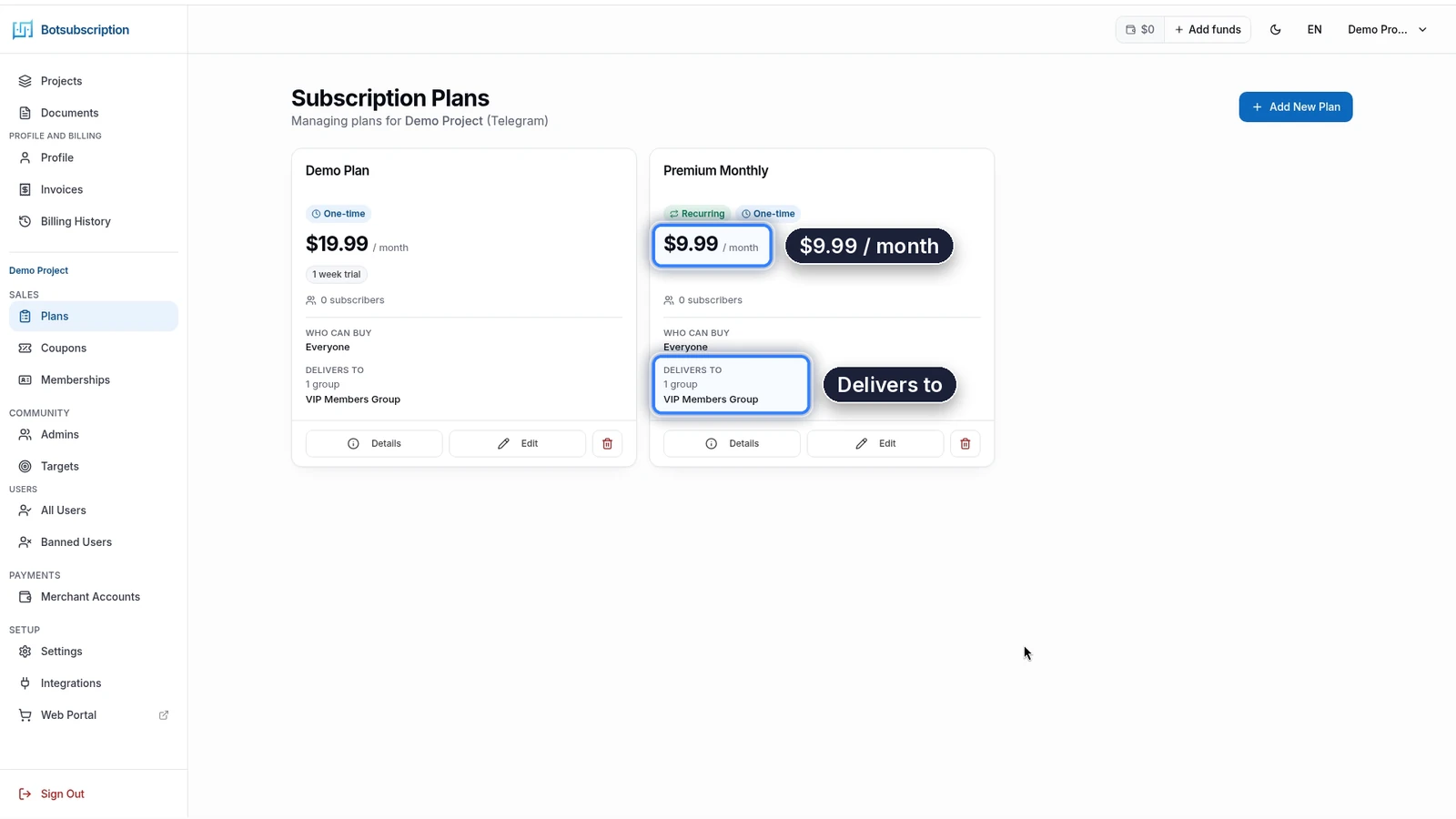
The Plans page at dash.botsubscription.com lists every plan in the project you have open, and you use it to review cards or add a plan. It is the same page for a Telegram subscription bot and a Discord payment bot. The header shows the project name and its platform, for example *(Telegram)*.
## Open Plans for your subscription bot
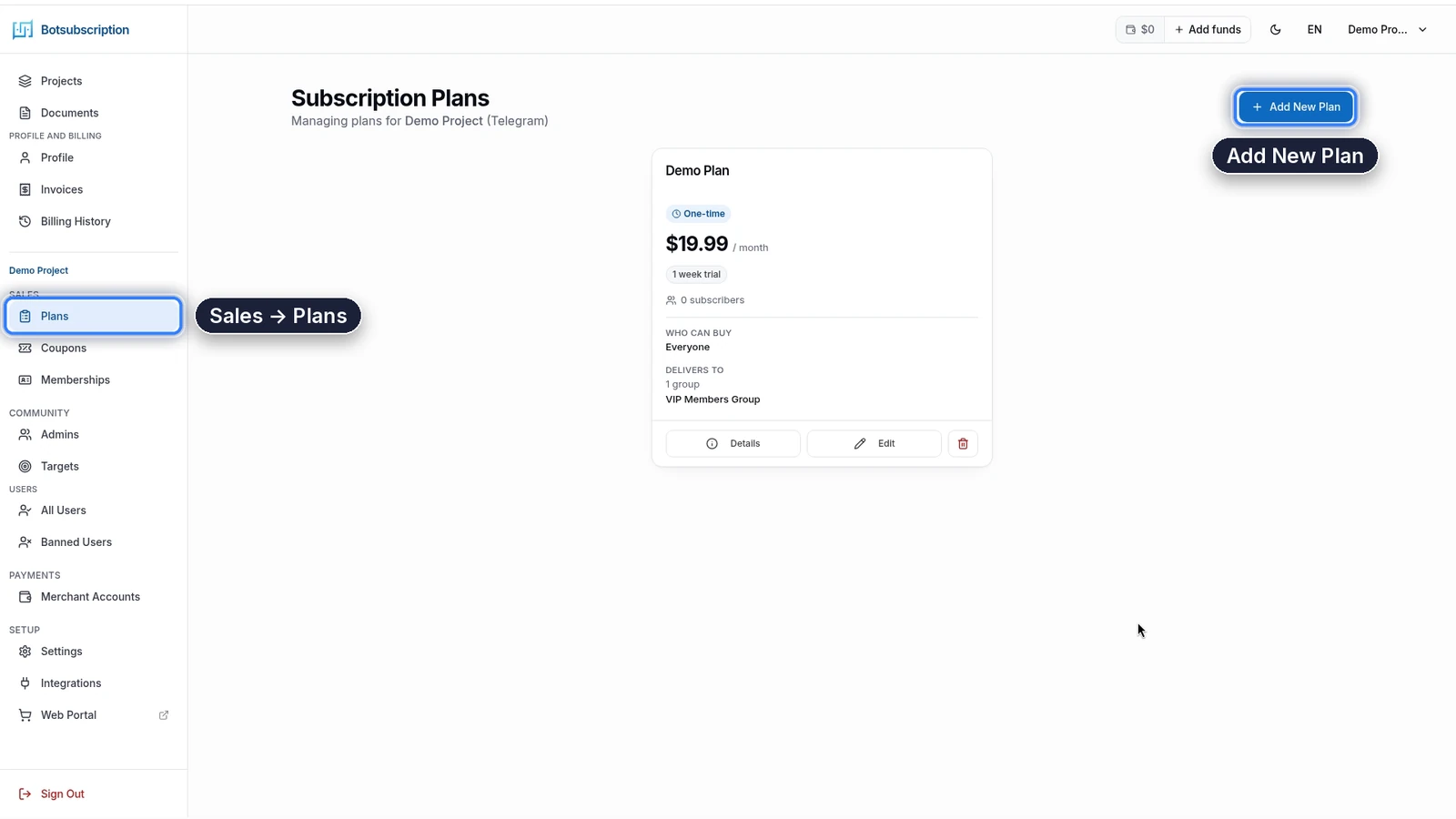
In dash.botsubscription.com, open your project and go to **Sales → Plans**. Each plan in that project appears as its own card.
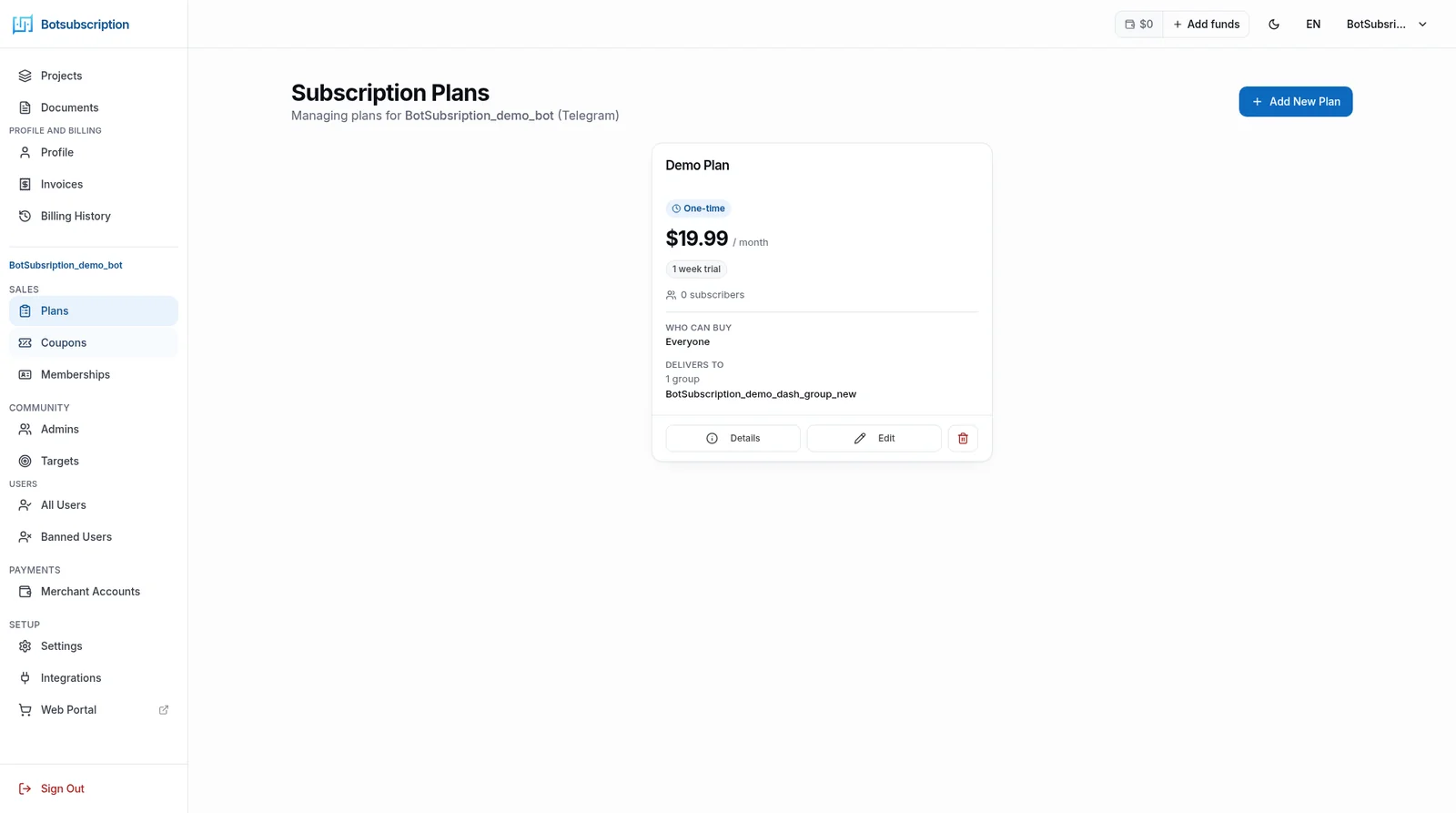 ## What a plan card shows
Each card shows the settings members and admins need at a glance:
- **Name** - the plan name members see, such as *Demo Plan*.
- **Price** - the amount and period, such as *$19.99 / month*.
- **Trial** - a trial length when the plan has one, such as *1 week trial*.
- **Subscribers** - how many members currently hold the plan.
- **Who can buy** - who is allowed to purchase the plan, for example *Everyone*.
- **Delivers to** - how many groups, channels, or servers the plan includes, and their names.
## Actions on a plan card
Each card has three controls along the bottom:
- **Details** opens the full plan information.
- **Edit** opens the plan so you can change it.
- The red trash icon deletes the plan.
## Create a subscription plan
Select **Add New Plan** in the top-right corner to open **Create New Subscription Plan**.
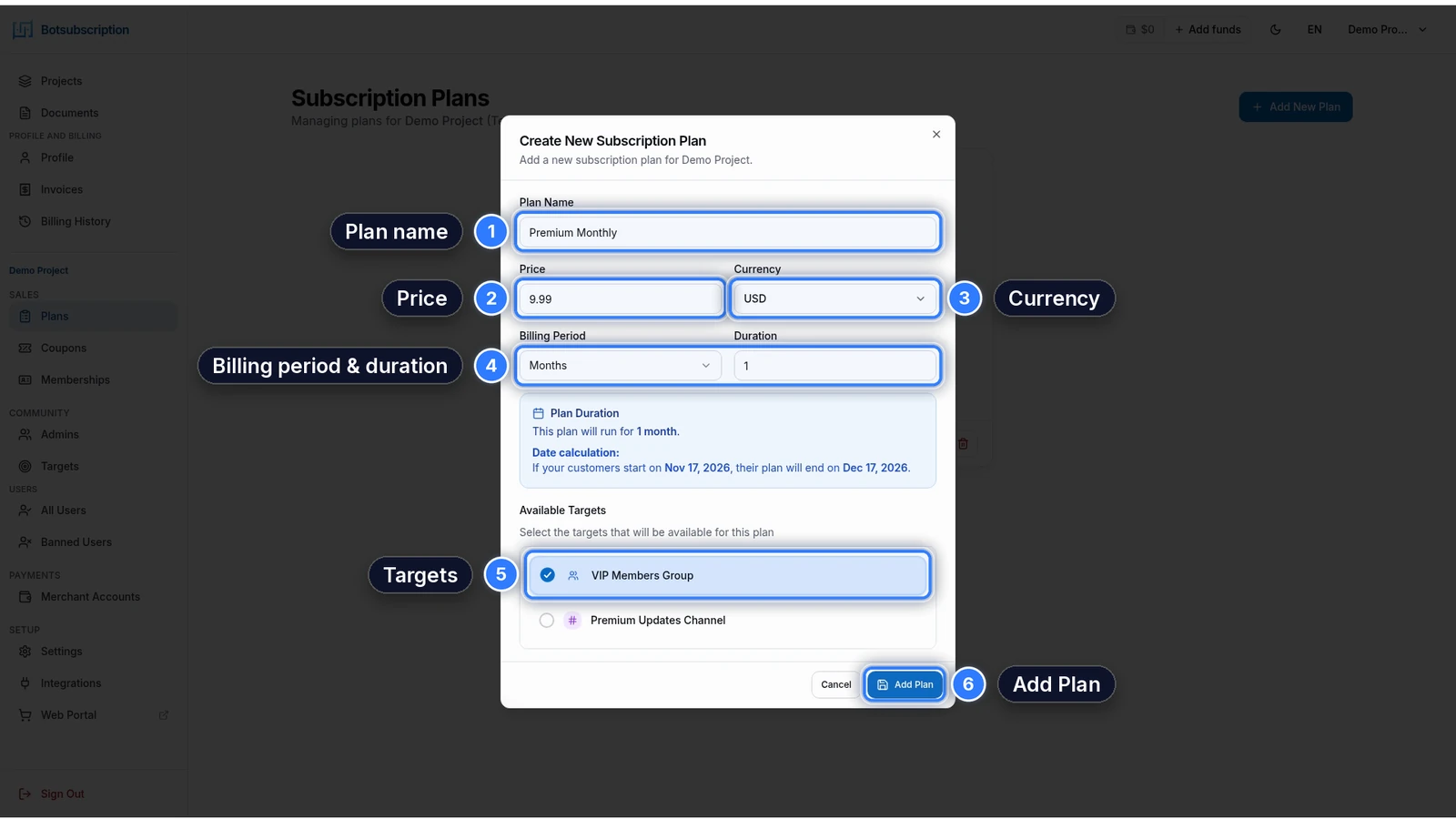
Premium Monthly, $9.99, USD, and 1 month are example values only. Admins set their own name, price, currency, and billing period, and the example prices on this page are in USD.
 The fields run in this order: **Plan Name**, **Price**, **Currency**, **Billing Period**, **Duration**, and **Available Targets**. The last control is **Add Plan**. The numbers in the screenshot match the steps below.
 ### Step 1: Plan Name
Enter the name members will see. The example on this page uses Premium Monthly.
### Step 2: Price
Enter one price for the plan. The example uses 9.99, and with USD selected the new card shows $9.99 / month.
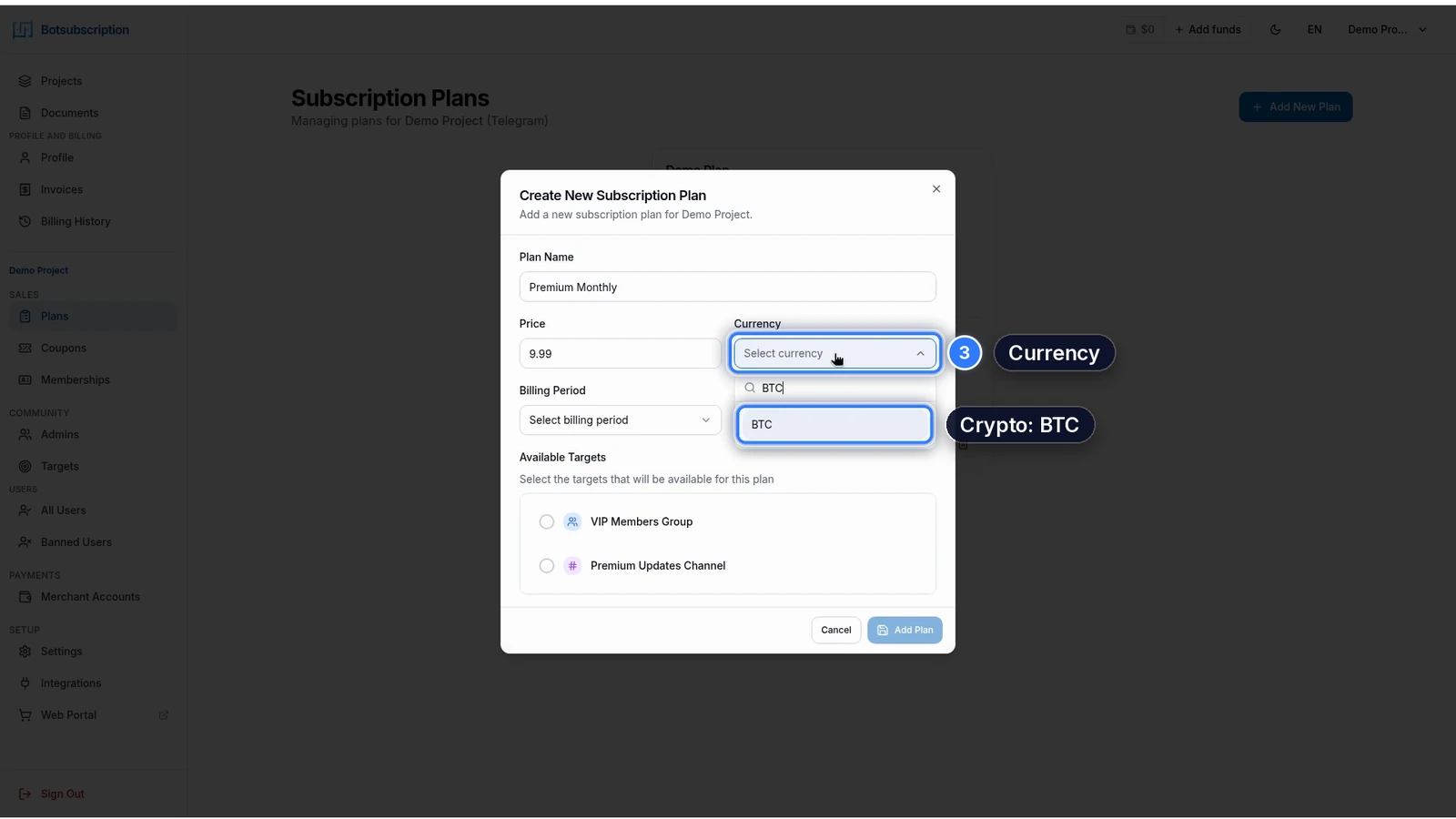
### Step 3: Currency
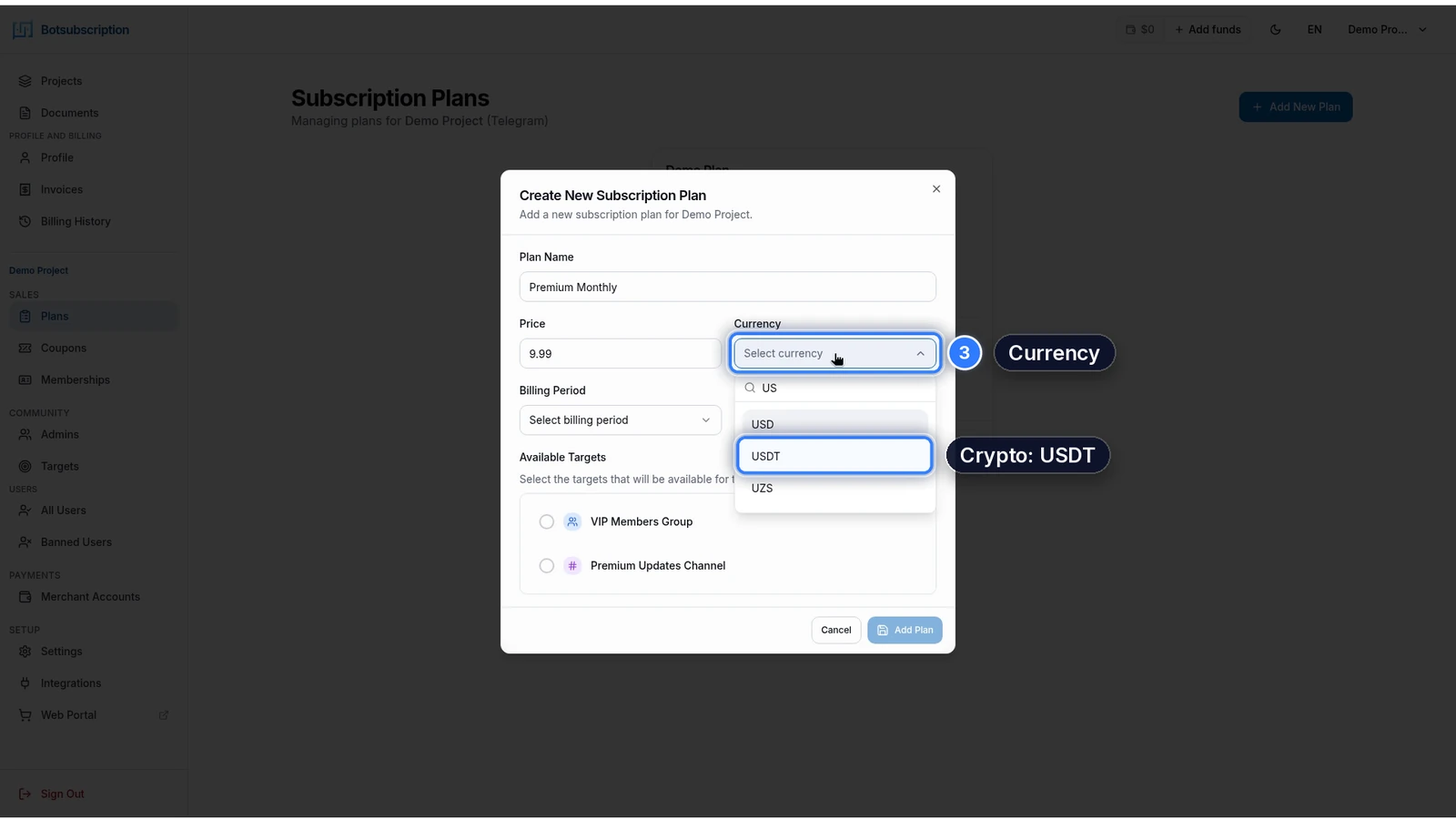
Choose one currency for that price. A plan has one price and one currency, and the list has 96 currencies, including BTC, ETH, SOL, USDT, XRP, and XTR (Telegram Stars).
You can price a plan in crypto. The screenshots show USDT and BTC in the picker, and ETH, SOL, and XRP are in the same list. XTR is Telegram Stars, and Telegram Stars works only on a Telegram subscription bot. Provider rules are on the [supported currencies page](https://docs.botsubscription.com/payments/supported-currencies/).
 ### Step 4: Billing period and duration
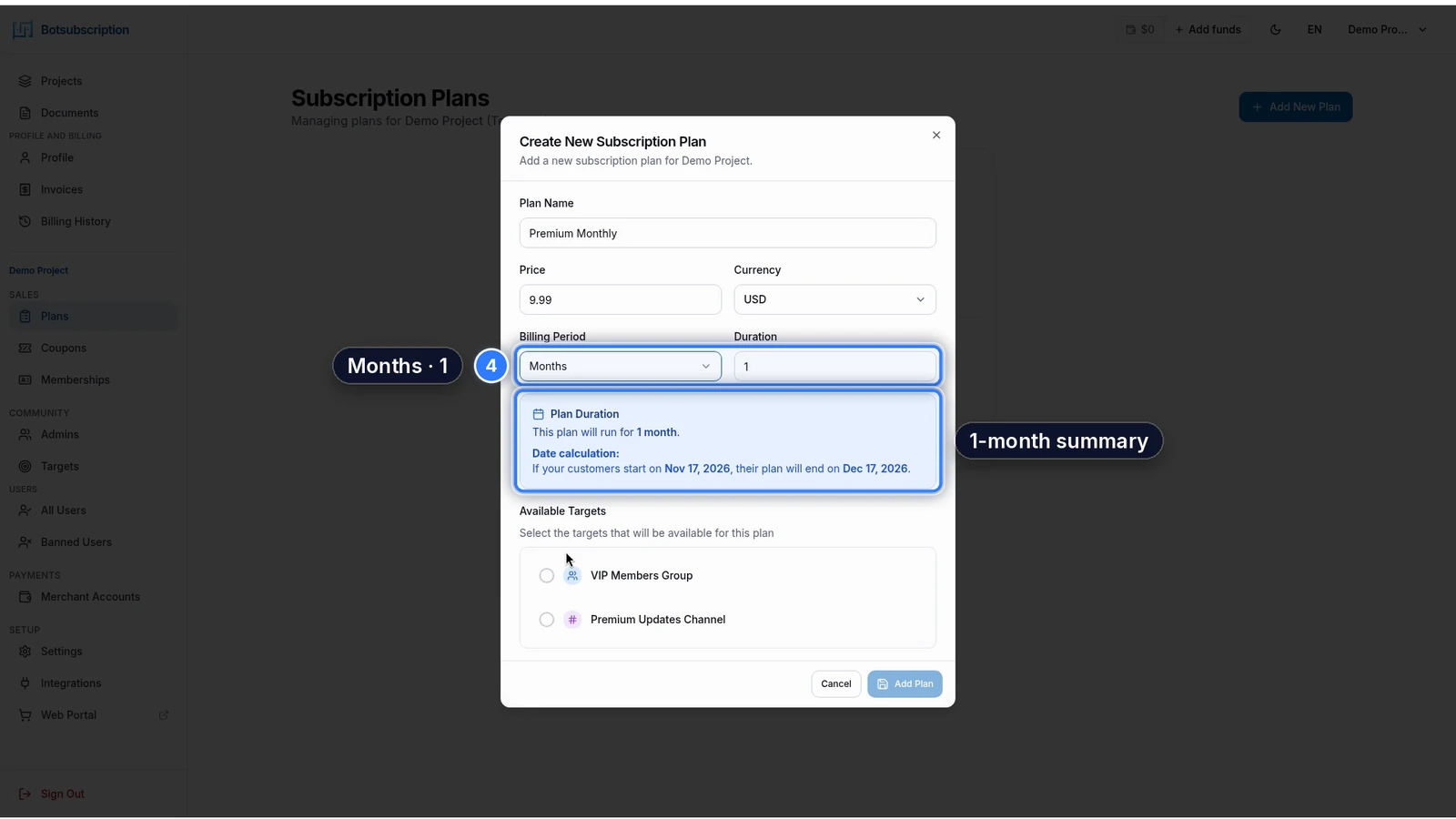
**Billing Period** options are Minutes, Hours, Days, Weeks, Months, Yearly, Exact Date, and Lifetime. **Duration** is the number of those periods.
In the example, Billing Period is Months and Duration is 1. The form then shows a summary for those values: the plan runs for 1 month, with a sample start date and end date.
 ### Step 5: Available Targets
Select the targets that will be available for this plan. The example selects VIP Members Group.
### Step 6: Add Plan
Select **Add Plan** to save the plan. The success toast reads "Plan Added". The new plan appears as a card on Sales → Plans, with its price and the target it delivers to.
 ## Related guides
- [Sandbox and Production environments](https://docs.botsubscription.com/getting-started/sandbox-vs-production/)
- [Payment providers you can connect](https://docs.botsubscription.com/payments/)