Add-ons & Premium Features
BotSubscription keeps the core platform affordable by separating advanced features into optional add-ons. This means you don't pay for expensive tools (like AI or custom domains) unless you actually need them.
Why Add-ons?
We believe you shouldn't pay for features you don't use. Instead of a high "all-in-one" subscription price, we keep the base fee low and let you pick and choose premium capabilities à la carte.
- Pay only for what you need: Keep your monthly costs down.
- Flexible: Install or remove features as your community grows.
How it works
You'll typically encounter add-ons in two ways:
- During setup: In Discord, you can use the
/projectscommand and click "Plan & add-ons" to manage your add-ons. - When a feature is locked: If an option is marked as locked, you'll see a button to install the add-on before you can continue.
What gets billed (and what doesn't)
Platform fees vs. Add-on fees
BotSubscription keeps the core platform fee low (starting at just a small percentage of revenue) so you can start for free and only pay when you earn. In fact, our Free Tier covers your first €85/month in revenue with €0 platform fees.
However, some premium features like AI or Custom Domains require specialized infrastructure or third-party APIs that cost money to run regardless of your revenue. Instead of raising the platform fee for everyone to cover these costs, we separate them into optional add-ons.
- Platform Fee: Covers the core bot, payments, and member management. (See full pricing details)
- Add-on Fee: Covers the specific fixed costs (servers, API usage, etc.) for that premium feature.
This ensures you never subsidize features you don't use.
Usage charges (AI Assistant only)
The AI Assistant is currently the only add-on with usage-based charges on top of the add-on fee. This is necessary because the AI relies on third-party providers to generate responses.
Here's how billing works for the AI Assistant:
- Add-on fee — Goes to BotSubscription. Covers maintaining and delivering the AI feature inside the product.
- Usage credits — Go directly to the AI provider (for example, OpenAI, xAI, or Google). These charges cover the actual cost of generating AI responses.
BotSubscription does not mark up or profit from usage credits—they pass through to the underlying service provider at cost.
Install an add-on on Discord
Follow these steps to install an add-on for your Discord subscription bot:
Step 1: Open your project settings
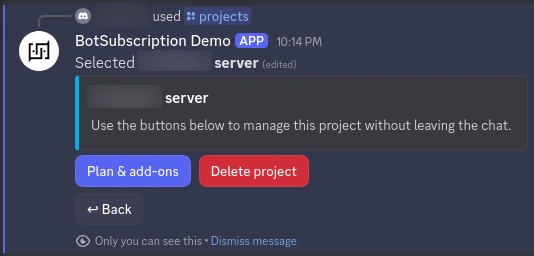
Type /projects in any channel where the BotSubscription bot is active. Select the server you want to manage from the list.
Step 2: Open Plan & add-ons
Click the "Plan & add-ons" button to access billing and add-on settings.
Step 3: Manage add-ons
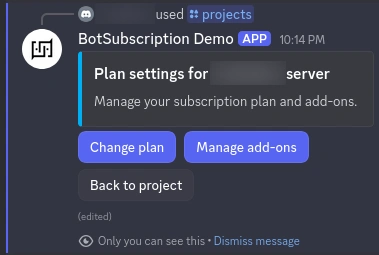
Click "Manage add-ons" to see all available add-ons.
Step 4: Review and install
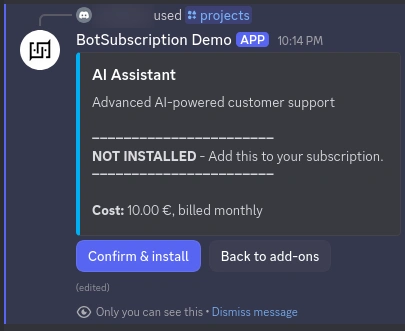
Click on the add-on you want (e.g., "AI Assistant"), review the price, and click "Confirm & install" to finish.
Step 5: Installation complete
After confirmation, the add-on is installed immediately. You'll see a success message and the add-on becomes active for your project.
Uninstall an add-on
To remove an add-on from your Discord payment bot:
- Navigate to Manage add-ons using the steps above.
- Click on the installed add-on (shown with a green button).
- Click "Remove add-on" to uninstall.
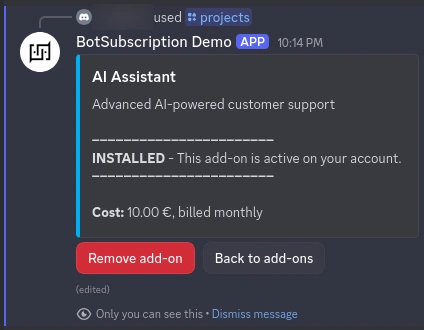
The add-on will be removed and you won't be charged for it on future bills.
FAQ
Will I be charged for add-ons if I don't install them?
No. Add-ons are optional—if you don't install them, you won't pay add-on charges.
Where do I manage add-ons?
On Discord, use the /projects command, select your server, then click "Plan & add-ons" followed by "Manage add-ons". On Telegram, access add-ons through the bot's settings menu or the Web Portal.
Can I install add-ons on both Telegram and Discord?
Add-ons are installed per project. Since Telegram and Discord currently operate as separate projects, you'll need to install add-ons for each platform individually if you want the features on both.
Next steps
Last updated: