Binance Pay Integration Setup
Binance Pay is a contactless, borderless, and secure cryptocurrency payment technology designed by Binance. It allows you to accept crypto payments from millions of Binance users worldwide instantly and with minimal fees.
Why Binance Pay?
- Global Reach - Tap into the massive user base of the world's largest crypto exchange
- Low Fees - Significantly lower transaction fees compared to traditional payment networks
- Instant Settlement - Receive funds instantly in your Binance merchant wallet
- Multi-Currency - Accept payments in major cryptocurrencies including USDT, USDC, BTC, ETH, and others.
Prerequisites
Before connecting Binance Pay to your subscription bot, you'll need:
- A verified Binance account
- A registered Binance Merchant Account
- An API Key and Secret Key
Do not confuse your Personal Binance account with a Merchant Account.
You cannot use a standard personal Binance account to accept automated payments. You must apply for a Merchant Account at merchant.binance.com.
Note: Binance has discontinued support for Individual/Personal merchant accounts. While BotSubscription supports any valid Binance Merchant account, Binance now strictly requires a registered business entity (KYB) to create one.
Supported Currencies
Our Binance Pay integration currently supports the following cryptocurrencies:
| Category | Currencies |
|---|---|
| Stablecoins | USDT, USDC |
| Major | BTC, ETH, BNB, SOL, ADA, XRP |
| Other | DOGE, DOT, MATIC, LTC, SHIB, TRX, AVAX, LINK, UNI, ATOM, ETC |
Generating API Keys
Log in to the Binance Merchant Portal (Apply if you haven't yet).
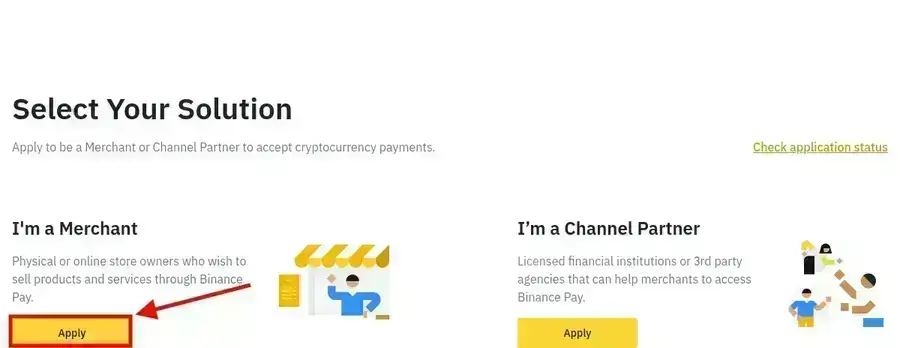
Register as a Binance Pay merchant Go to Developers -> API Integration.
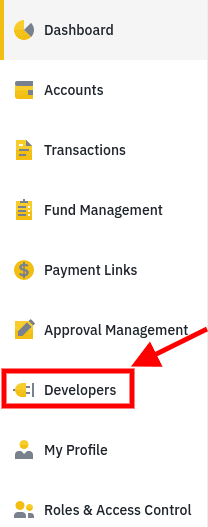
Select Developers from the menu Click Generate API Key.
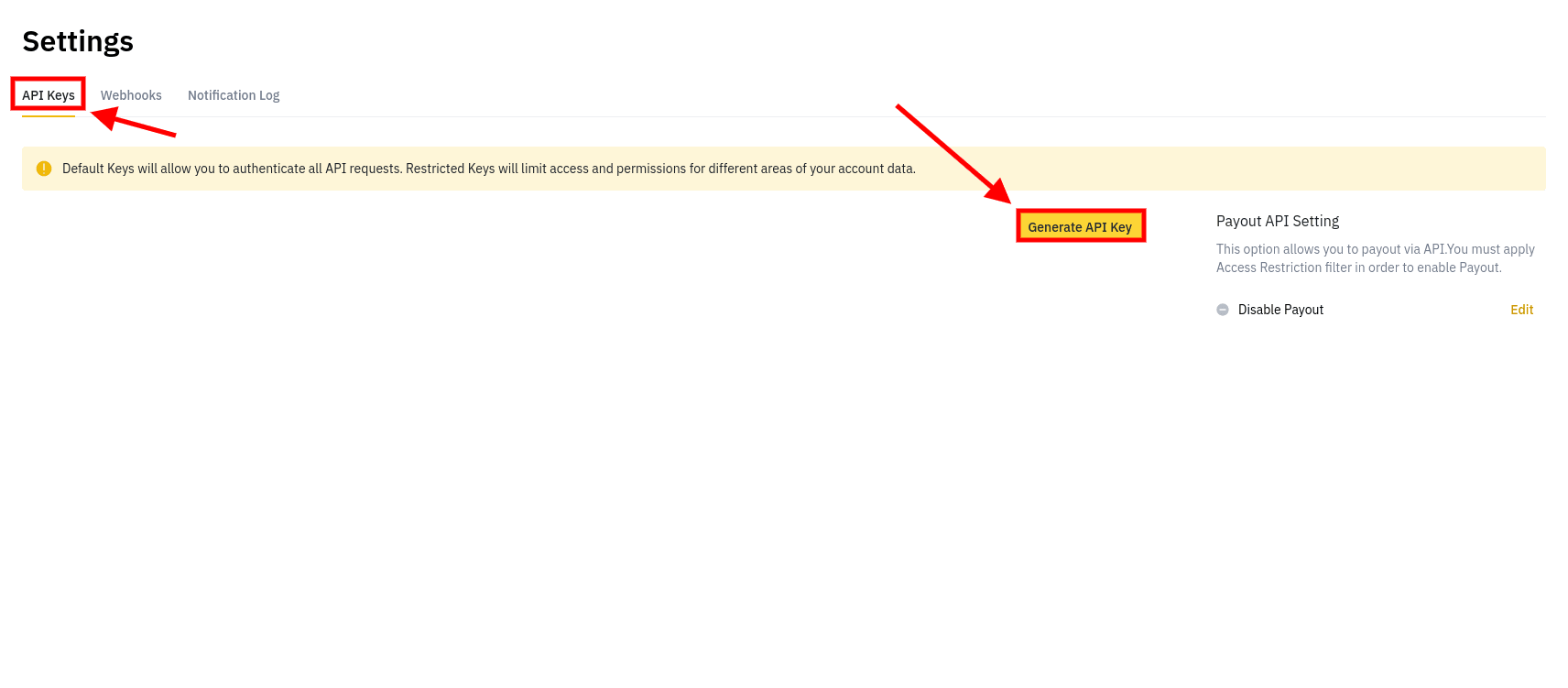
Generate new API Keys You will receive an
API Keyand aSecret Key.Secure your keys: The Secret Key is shown only once. Store it safely.
Your Binance Merchant API keys are powerful. Never share them externally.
Connecting Binance Pay
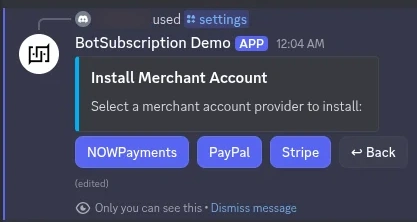
Open the bot settings using the /settings command and navigate to Merchant Accounts.
Step 1: Install Merchant Account
Click "Install Merchant Account" to add a new payment provider.
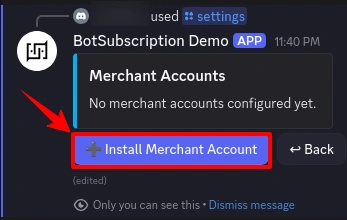
Step 2: Select Binance Pay
Choose Binance Pay from the list of available payment providers.
Step 3: Review Requirements
The bot displays the credentials needed:
- API Key
- Secret Key
The current environment (Sandbox/Test or Production/Live) is shown. Click Configure to proceed.
Step 4: Enter Your Credentials
A secure form appears where you enter your Binance keys:
- Paste your
API Key - Paste your
Secret Key
Click Submit to complete the setup.
Step 5: Confirmation
After validation, BotSubscription confirms the integration is ready to accept crypto payments.
User Experience
Once connected, your users will see Binance Pay as a payment option when subscribing.
1. Checkout
Users select a plan and choose Binance Pay. The bot generates a unique QR code for the specific amount.
2. Payment
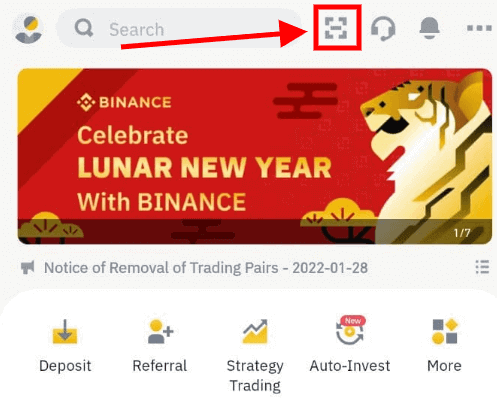
The user scans the QR code using their Binance App and confirms the transaction.
Testing
Binance Pay does not provide a sandbox environment. To verify your setup, you must perform a real transaction using a small amount (e.g., 0.1 USDT).
The Test Mode switch in the bot settings is not compatible with Binance Pay as there are no test keys available. Please ensure your bot is in Production Mode to process payments.
Troubleshooting
"Authentication Failed"
- Ensure you are using the correct secret key.
- Re-generate your API keys if you suspect they have been compromised.
- Check if your IP address needs to be whitelisted in the Binance Merchant Portal (if IP restrictions are enabled).
"Order Creation Failed"
- Verify that the specific currency you are trying to charge (e.g., USDT) is supported and enabled in your Merchant settings.
- Ensure the minimum transaction amount limits are met (Binance Pay has minimum limits for crypto transfers).
"Webhook/Notification Issues"
- BotSubscription handles the webhook registration automatically via API for Binance Pay (in most integrations), but you should verify in the Merchant Portal under "Webhook Settings" if you are not receiving payment confirmations.
Last updated: