Paddle Payment Provider Setup
Paddle is a powerful merchant of record and global payment gateway that enables your subscription bot to effortlessly accept payments worldwide. By integrating Paddle with BotSubscription, you offer a seamless checkout experience with built-in support for credit cards, PayPal, Apple Pay, and Google Pay. One of Paddle's primary advantages is that it automatically handles complex tax compliance (like sales tax and VAT) as your Merchant of Record (MoR).
Whether you are running a community on Discord or other integrated platforms, Paddle can streamline your global monetization.
Why Paddle?
- Global Reach - Accept transactions from customers worldwide with localized checkout experiences.
- Multiple Payment Methods - Native support for Credit/Debit Cards, PayPal, Apple Pay, Google Pay, and localized methods.
- Tax Compliance Built-in - Paddle calculates, collects, and remits software sales taxes (such as VAT) across the globe automatically.
- Powerful Subscription Billing - Reliably process recurring billing, upgrades, tier changes, and cancellations.
Paddle is ideal if you want a hands-off approach to global tax compliance while offering a widely trusted checkout process and top-tier payment methods to your community.
Prerequisites
Before connecting Paddle to your subscription bot, you'll need:
- A Paddle account (Sign up here)
- Your API Key from the Paddle dashboard
- Your Client-side token from the Paddle dashboard
Getting Your Paddle Credentials
- Log in to your Paddle Vendor Dashboard
- Navigate to Developer Tools > Authentication
- Under the API keys tab, click + New API key to generate a secret key.
- Switch to the Client-side tokens tab and create a new token.
Always keep your API Key secure. Never share it publicly.
Connecting Paddle
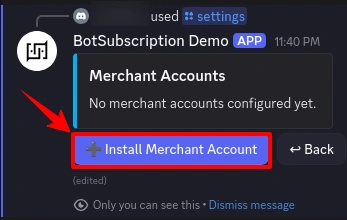
Open the bot settings using the /settings command and navigate to "Merchant Accounts".
Step 1: Install Merchant Account
Click "Install Merchant Account" to add a new payment provider to your server.
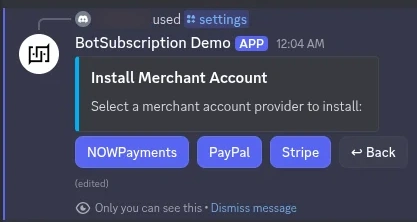
Step 2: Select Paddle
Choose "Paddle" from the list of available checkout providers.
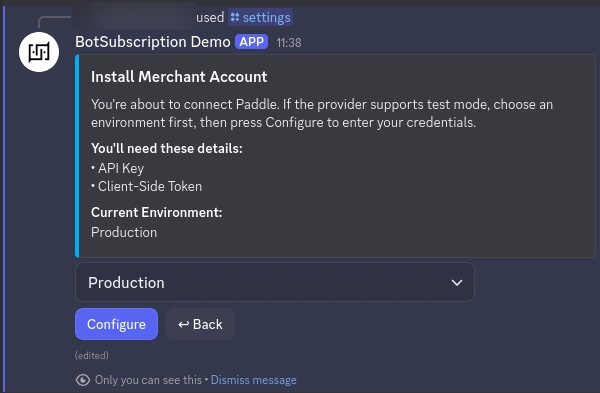
Step 3: Review Requirements
The bot displays the credentials you'll need to link your account:
- API Key - Your primary Paddle authentication key
- Client-side token - Token used for secure checkout initialization
The current environment is displayed (Sandbox for testing, or Production for live processing). Click "Configure" to proceed.
Step 4: Enter Your Credentials
A secure form appears where you enter your Paddle API credentials:
- Paste your API Key from the API keys tab
- Paste your Client-side token from the Client-side tokens tab
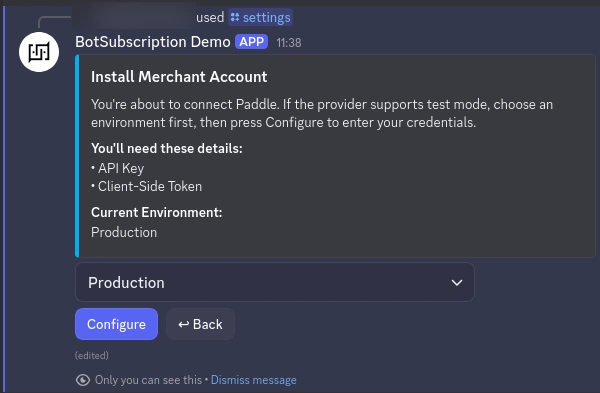
Click "Submit" to validate and complete the setup.
Step 5: Confirmation
Once verified by our system, you'll see a success message acknowledging that Paddle has been securely connected to your bot.
Your community members can now pay for advanced roles and memberships using Paddle's highly-optimized checkout.
Environment Modes
Sandbox (Testing)
Use Sandbox mode to test your integration without real charges.
- Test transactions process via Paddle's secure sandbox environment (this requires a separate Sandbox account)
- Verify that your configurations and billing cycles function perfectly before going live
- No actual funds are charged or transferred
Learn more about Sandbox vs. Production environments and how to test your bot safely.
Ensure you are using the API Key and Client-side token from your Paddle Sandbox account when the bot is in Sandbox mode. Setting live credentials in Sandbox mode will cause the configuration to fail.
Production (Live)
Switch to Production mode when you are fully ready to accept live payments:
- Handles real credit card and PayPal transactions
- Actual funds are processed and deposited to your Paddle seller account
- Members are billed their recurring subscription fee immediately
We highly recommend running a test transaction in Sandbox mode first to confirm roles and permissions are granted correctly before taking your server's checkout live.
Last updated: