PayPal Payment Integration Setup
PayPal is a widely trusted payment method used by over 400 million people worldwide. By connecting PayPal to your subscription bot, you can accept payments via PayPal balance, linked bank accounts, and credit/debit cards.
Why PayPal?
- Trusted Brand - Subscribers feel safe paying with a known provider
- Global Reach - Accept payments in 25+ currencies from 200+ markets
- Flexible Payments - Supports PayPal balance, bank transfers, and cards
- Buyer Protection - Increases subscriber confidence and conversion rates
Prerequisites
Before connecting PayPal to your subscription bot, you'll need:
- A PayPal Business account (Sign up here)
- Your Client ID
- Your Secret Key
Personal PayPal accounts cannot be used. You must upgrade to a Business Account (it's free) to access the API credentials needed for the bot.
You do not need an officially registered company to have a Business Account. If you are an individual or freelancer, you can simply register as a Sole Proprietorship or Individual/Sole Trader. This is just a requirement from PayPal to use their merchant tools.
Getting Your PayPal Credentials
To connect the bot, you need to create an "App" in the PayPal Developer Dashboard.
- Log in to the PayPal Developer Dashboard with your business account.
- Go to Apps & Credentials.
- Toggle to Live (for real payments) or Sandbox (for testing).
- Click Create App.
- Enter an App Name (e.g.,
BotSubscription) and click Create App. - On the next screen, you will see your Client ID and Secret (you may need to click "Show" to see the Secret).
Do not use the "Default Application". Always create a new app specifically for your bot to ensure proper settings and security.
Connecting PayPal
Open the bot settings using the /settings command and navigate to Merchant Accounts.
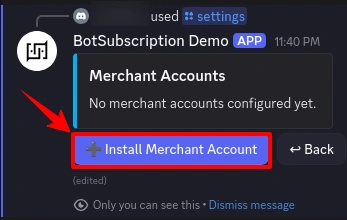
Step 1: Install Merchant Account
Click "Install Merchant Account" to add a new payment provider.
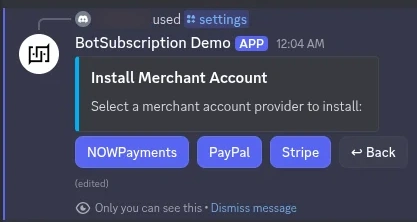
Step 2: Select PayPal
Choose PayPal from the list of available payment providers.
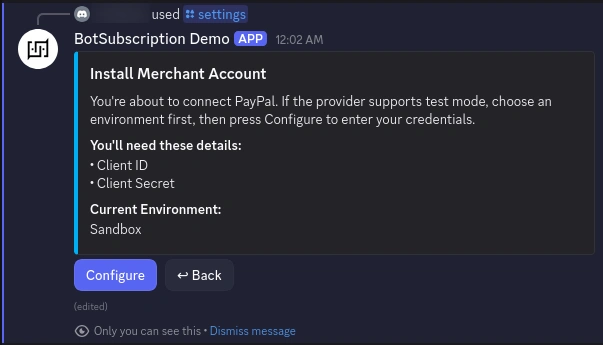
Step 3: Review Requirements
The bot displays the credentials needed:
- Client ID
- Secret
The current environment (Sandbox/Test or Production/Live) is shown. Click Configure to proceed.
Step 4: Enter Your Credentials
A secure form appears where you enter your PayPal keys:
- Paste your Client ID
- Paste your Secret
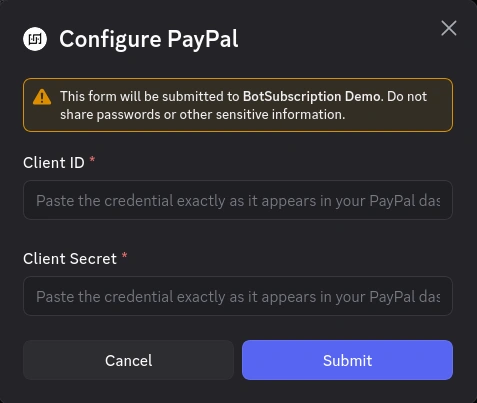
Click Submit to complete the setup.
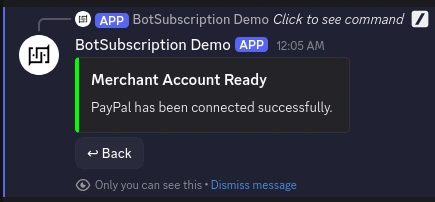
Step 5: Confirmation
Your PayPal credentials are verified and the bot sets up webhook notifications to track payments in real time.
Environment Modes
Test Mode (Sandbox)
Use Test Mode to verify your setup without charging real money.
- Status: Enabled when the bot is in Test Mode.
- Requirement: You must use Sandbox API credentials from the PayPal Developer Dashboard.
- Testing: You'll need a separate Sandbox Personal Account to act as the "buyer" during testing.
When in Sandbox mode, you cannot use your real PayPal account to pay. You must use a dedicated Sandbox test account created in the Developer Dashboard.
Live Mode (Production)
Switch to Live Mode to accept real payments.
- Status: Enabled when the bot is in Live Mode.
- Requirement: You must use Live API credentials from the PayPal Developer Dashboard.
- Webhooks: The bot automatically configures webhooks to track successful payments and recurring billing events.
Troubleshooting
"Invalid Client ID or Secret"
- Ensure you are using the correct credentials for your bot's mode.
- If Bot is in Test Mode, use Sandbox credentials.
- If Bot is in Live Mode, use Live credentials.
- Check for extra spaces when pasting the keys.
"Payment Pending"
- PayPal payments sometimes trigger a fraud review or "Pending" status. The bot will only grant access once the payment status changes to
COMPLETED. - Check your PayPal account settings to ensure you automatically accept payments in the currency you are charging.
"Things don't appear to be working at the moment"
- This generic PayPal error often means your Business Account setup is incomplete.
- Verify your email address and bank account are confirmed in PayPal.
- Ensure "Encrypted Website Payments" is set to Off in your PayPal Website Payment Preferences (if applicable).
Last updated: