Paystack Integration Setup
Paystack is the premier payment gateway for businesses in Africa, helping you accept payments from customers in Nigeria, Ghana, Kenya, and South Africa via cards, mobile money, and USSD.
Why Paystack?
- African Focus - Specialized support for local payment methods like Mobile Money (M-Pesa, MTN Mobile Money) and USSD
- High Success Rates - Direct integrations with major African banks ensure reliable transactions
- Global Reach - Accept international payments from anywhere in the world
- Simple Settlement - Get paid directly to your bank account within 24 hours
Prerequisites
Before connecting Paystack to your subscription bot, you'll need:
- A Paystack account (Sign up here)
- A Public Key and Secret Key
Finding Your API Keys
- Log in to your Paystack Dashboard.
- Go to Settings -> API Keys & Webhooks.
- You will see two sets of keys: Test Mode and Live Mode.
- Use the Test keys for initial setup and the Live keys when you are ready to launch.
Keep your Secret Key private. Do not share it with anyone or post it in public channels.
Connecting Paystack
Open the bot settings using the /settings command and navigate to Merchant Accounts.
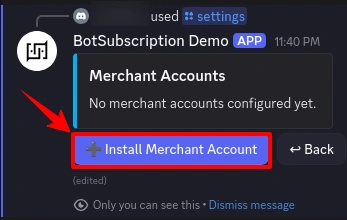
Step 1: Install Merchant Account
Click "Install Merchant Account" to add a new payment provider.
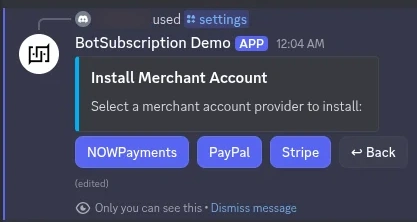
Step 2: Select Paystack
Choose Paystack from the list of available payment providers.
Step 3: Review Requirements
The bot displays the credentials needed:
- Public Key (starts with
pk_...) - Secret Key (starts with
sk_...)
The current environment (Sandbox or Production) is shown. Click Configure to proceed.
Step 4: Enter Your Credentials
A secure form appears where you enter your Paystack keys:
- Paste your
Public Key - Paste your
Secret Key
Click Submit to complete the setup.
Step 5: Confirmation
After validation, BotSubscription automatically configures necessary webhooks and confirms the integration.
Environment Modes
Sandbox Mode (Testing)
Use Sandbox Mode to verify your setup safely.
- Bot Status: Enabled when the bot is in Test Mode/Sandbox.
- Paystack Keys: Use keys starting with
pk_test_...andsk_test_.... - Cards: Use Paystack Test Cards to simulate scenarios.
- Mobile Money: You can simulate mobile money payments using the test phone numbers provided in Paystack docs.
Production Mode (Live)
Switch to Production Mode to accept real payments.
- Bot Status: Enabled when the bot is in Production Mode.
- Paystack Keys: Use keys starting with
pk_live_...andsk_live_.... - Requirement: Your Paystack business must be "Live" (KYC and activation completed).
Troubleshooting
"Invalid Credentials"
- Verify that you haven't mixed up Test and Live keys. Test bot mode requires Test keys; Live bot mode requires Live keys.
- Check for whitespace errors during pasting.
"Payment Failed"
- In Live mode, ensure the customer's card supports international transactions if they are paying in a non-native currency.
- Checks if the specific payment channel (e.g., Mobile Money) is enabled in your Paystack dashboard settings.
"Webhook Issues"
- Go to Settings -> API Keys & Webhooks and verify the Webhook URL matches the one provided by BotSubscription.
Last updated: