Stripe Payment Integration Setup
Stripe is the recommended payment provider for BotSubscription. It allows your subscription bot to accept credit cards, Apple Pay, Google Pay, and various regional payment methods in over 195 countries.
Why Stripe?
- Global coverage - Accept payments from almost anywhere in the world
- Seamless Checkout - Supports Apple Pay, Google Pay, and Link for one-click payments
- Automatic Subscription Management - Handles recurring billing and failed payment retries
- Fraud Protection - Built-in fraud detection to protect your business
- Trusted Reliability - The industry standard for online payments
Prerequisites
Before connecting Stripe to your subscription bot, you'll need:
- A Stripe account (Sign up here)
- A Restricted Key (recommended) or Secret Key
Creating a Restricted Key (Recommended)
While BotSubscription works with your account's master Secret Key, we strongly recommend creating a Restricted Key to limit the bot's access to only what it needs.
- Log in to your Stripe Dashboard.
- Go to Developers > API keys.
- Click "Create restricted key".
- Name it
BotSubscription. - Under Permissions, set the following access levels. Most of these are part of the critical infrastructure required for the bot to operate:
| Category | Permission | Access Level | Status | Reason |
|---|---|---|---|---|
| Core | Charges | Read | Required | To confirm successful payments |
| Customers | Write | Required | To create and manage subscriber profiles | |
| Disputes | Read | Optional | To detect and handle chargebacks | |
| Payment Intents | Write | Required | To process payments and recurring charges | |
| Payment Methods | Write | Required | To save cards for future renewals | |
| Products | Write | Required | To sync your subscription plans | |
| Prices | Write | Required | To manage pricing tiers | |
| Refunds | Write | Optional | To issue refunds from the bot | |
| Setup Intents | Write | Required | To setup payment methods without immediate charge | |
| Billing | Invoices | Write | Required | To generate billing records |
| Subscriptions | Write | Required | To manage recurring subscriptions | |
| Checkout | Checkout Sessions | Write | Required | To create payment pages |
| Webhooks | Webhook Endpoints | Write | Required | To automatically configure payment notifications |
- Scroll down and click "Create key".
- Copy the key (it starts with
rk_...). You won't be able to see it again.
Missing required permissions will break your bot. Ensure every permission marked as Required is set correctly.
Connecting Stripe
Open the bot settings using the /settings command and navigate to Merchant Accounts.
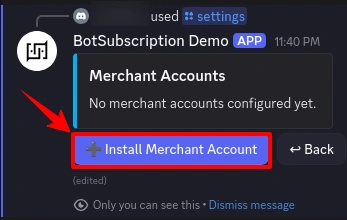
Step 1: Install Merchant Account
Click "Install Merchant Account" to add a new payment provider.
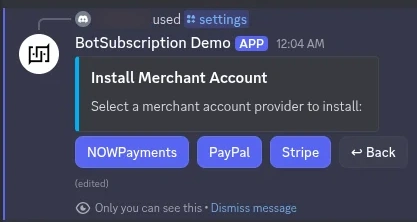
Step 2: Select Stripe
Choose Stripe from the list of available payment providers.
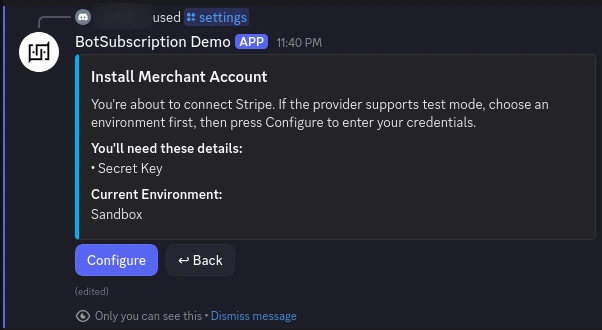
Step 3: Review Requirements
The bot displays the credential needed:
- Secret Key (or Restricted Key
rk_...)
The current environment (Sandbox/Test or Production/Live) is shown. Click Configure to proceed.
Step 4: Enter Your Credentials
A secure form appears where you enter your Stripe key:
- Paste your Restricted Key (or Secret Key)
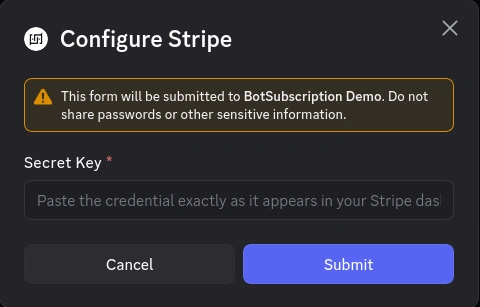
Click Submit to complete the setup.
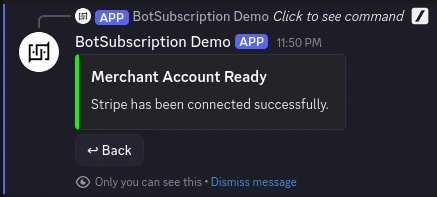
Step 5: Confirmation
After validation, BotSubscription creates the required Stripe webhooks automatically and confirms the integration is ready.
Environment Modes
Test Mode (Sandbox)
Use Test Mode to verify your setup without charging real money.
- Status: Enabled when the bot is in Test Mode.
- Cards: Use Stripe Test Cards (e.g.,
4242 4242 4242 4242).
We recommend running a full test cycle (subscribe -> payment -> role assignment) in Test Mode before going live.
Live Mode (Production)
Switch to Live Mode to accept real payments.
- Status: Enabled when the bot is in Live Mode.
- Requirement: You must have a verified business on Stripe.
Troubleshooting
"Invalid API Key" Error
- Ensure you copied the key correctly without extra spaces.
- If using a Restricted Key, double-check that all required permissions are set to Write (or Read where specified). Missing permissions are the most common cause of errors.
"Webhook Creation Failed"
- This usually means your API key lacks the
Webhook Endpoints>Writepermission. - Update the key permissions in Stripe Dashboard or create a new one with the correct access.
Payments Not Confirming
- Check if your Stripe account has any verification holds.
- Ensure the webhook was created successfully (check Developers > Webhooks in Stripe).
Last updated: