Discord & Telegram Subscription Bot Flow
This guide walks through the full member experience in a Discord subscription bot (Telegram coming soon)—from choosing a plan to completing payment—so you can confidently explain the process (or troubleshoot it) in minutes.
Discord prerequisites (for admins)
Before members can subscribe, make sure you have:
- Created at least one subscription plan (with an assigned role): see Create Plans
- Connected at least one payment provider
- Finished Discord setup (role hierarchy + channel permissions): see Discord setup
Members can subscribe using the /subscribe command—see Bot Commands if you want the full command reference.
Discord: Starting a Subscription
Members can start a subscription in your Discord server by:
- Using the
/subscribecommand - Opens the plan selection menu - Clicking a permanent Subscribe button - If an admin posted one in a channel
For admins: Run /subscribe in a channel to post a permanent Subscribe button for members to click. Pin it in a high-visibility channel (like your welcome channel) to make subscribing easy.
Discord: Step 1 — Select a Plan
When members initiate a subscription, the subscription bot shows your available plans as clickable buttons:
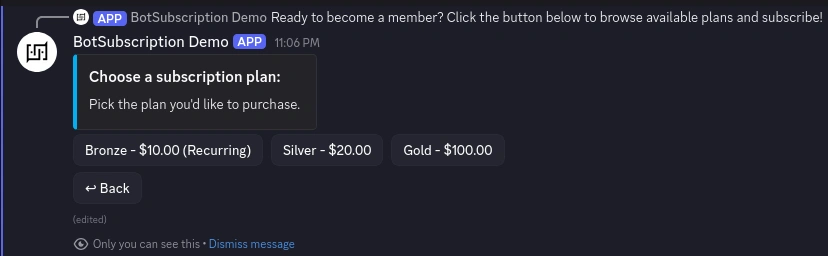
What you should see:
- A set of plan buttons (one per available plan)
- Only plans you've created and made available to members
Discord: Step 2 — Review Subscription Summary
After selecting a plan, the bot shows a summary before payment:
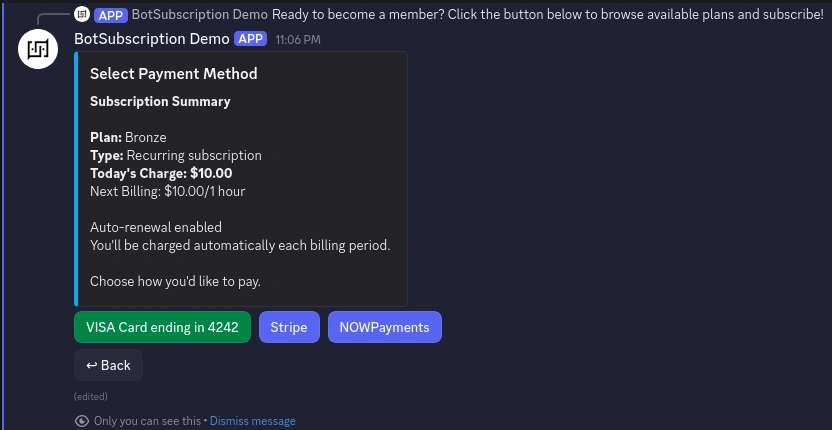
What you should see:
- Plan details: The name, duration, and price of the selected plan.
- Access info: The specific Discord role that will be granted upon payment.
- Payment Providers: Buttons for your connected providers (e.g., Stripe, PayPal, or NOWPayments).
- One-click option: A dedicated button for faster checkout, appearing only if the member has a saved payment method.
Discord: Step 3 — Choose a Payment Provider
Members choose a payment provider (for example Stripe, PayPal, or NOWPayments) to complete checkout. If the member has a saved payment method (optional), they may see a one-click option for faster checkout.
Discord: Step 4 — Complete Payment
The payment experience differs depending on which payment provider the member selects.
Hosted Checkout (Stripe, PayPal, etc.)
For most payment providers, members are redirected to a secure hosted checkout page. They complete payment with the provider, then return to Discord after the transaction is confirmed.
What you should see:
- A redirect to the provider's checkout
- A confirmation message after a successful payment
Cryptocurrency Payments (NOWPayments)
When members select cryptocurrency, they'll first choose which coin to pay with. NOWPayments supports Bitcoin, Ethereum, USDT, and 200+ other cryptocurrencies:
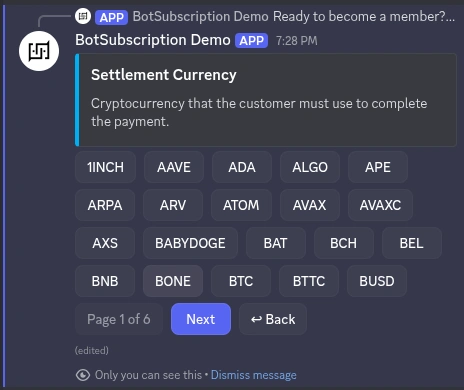
Some cryptocurrencies have minimum payment amounts. If your plan price is below the minimum for a particular coin (e.g., Bitcoin often requires higher minimums), the bot will show an error. Try a different cryptocurrency with lower minimums, such as Litecoin (LTC) or a stablecoin.
After selecting a cryptocurrency, the bot displays payment instructions with a QR code:
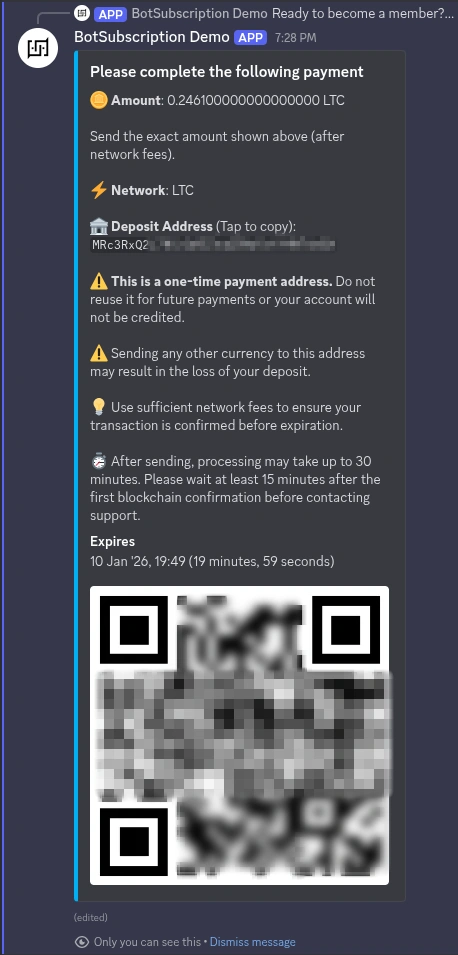
The payment screen includes:
- Amount - The exact cryptocurrency amount to send
- Network - The blockchain network to use
- Deposit Address - The wallet address
- QR Code - Scan with a mobile wallet for easy payment
- Expiration Timer - Time remaining to complete payment
- Send the exact amount shown (after accounting for network fees)
- This is a one-time payment address - do not reuse it for future payments
- Sending a different cryptocurrency to this address may result in lost funds
- Processing can take time after you send funds (especially during high network congestion)
After successful payment, BotSubscription automatically assigns the plan’s role and grants access to your premium channels.
Discord: Common Issues
Members don’t see any plans
- Confirm you created at least one plan: Create Plans
- If you have multiple plans, make sure the ones you want to sell are the ones members should see in
/subscribe
A payment provider option is missing
Available payment providers depend on what you connected. Review your setup in the payments section of your project.
Crypto shows a “minimum amount” error
Some cryptocurrencies have minimum transaction amounts. Try a different cryptocurrency with lower minimums (for example Litecoin (LTC) or a stablecoin). See NowPayments for details.
A member paid but didn’t get access
- Ask them to check
/membershipsto confirm the subscription is active: Bot Commands - If roles aren't assigning, double-check Discord role hierarchy and permissions: Discord setup
Next Steps
Last updated: