# Top up your balance on the subscription bot web portal
> Top up your balance on a Telegram or Discord subscription bot web portal, then spend it on a plan at checkout.
Source: https://docs.botsubscription.com/web-portal/balance/
Payments and balance top-ups on a web portal go to the seller's own merchant account. That account is their Stripe, PayPal, NOWPayments, or another provider. The money does not go to BotSubscription, and the web portal is the seller's storefront. Payments to BotSubscription itself happen only in the BotSubscription dashboard.
Demo Project, Alex Example, the plans, the balances ($6.90 before and $16.90 after), the $10.00 top-up, and the saved test card are example values only.
Your balance is a wallet on this seller's web portal for a Telegram or Discord subscription bot.
## 1. Open your Profile
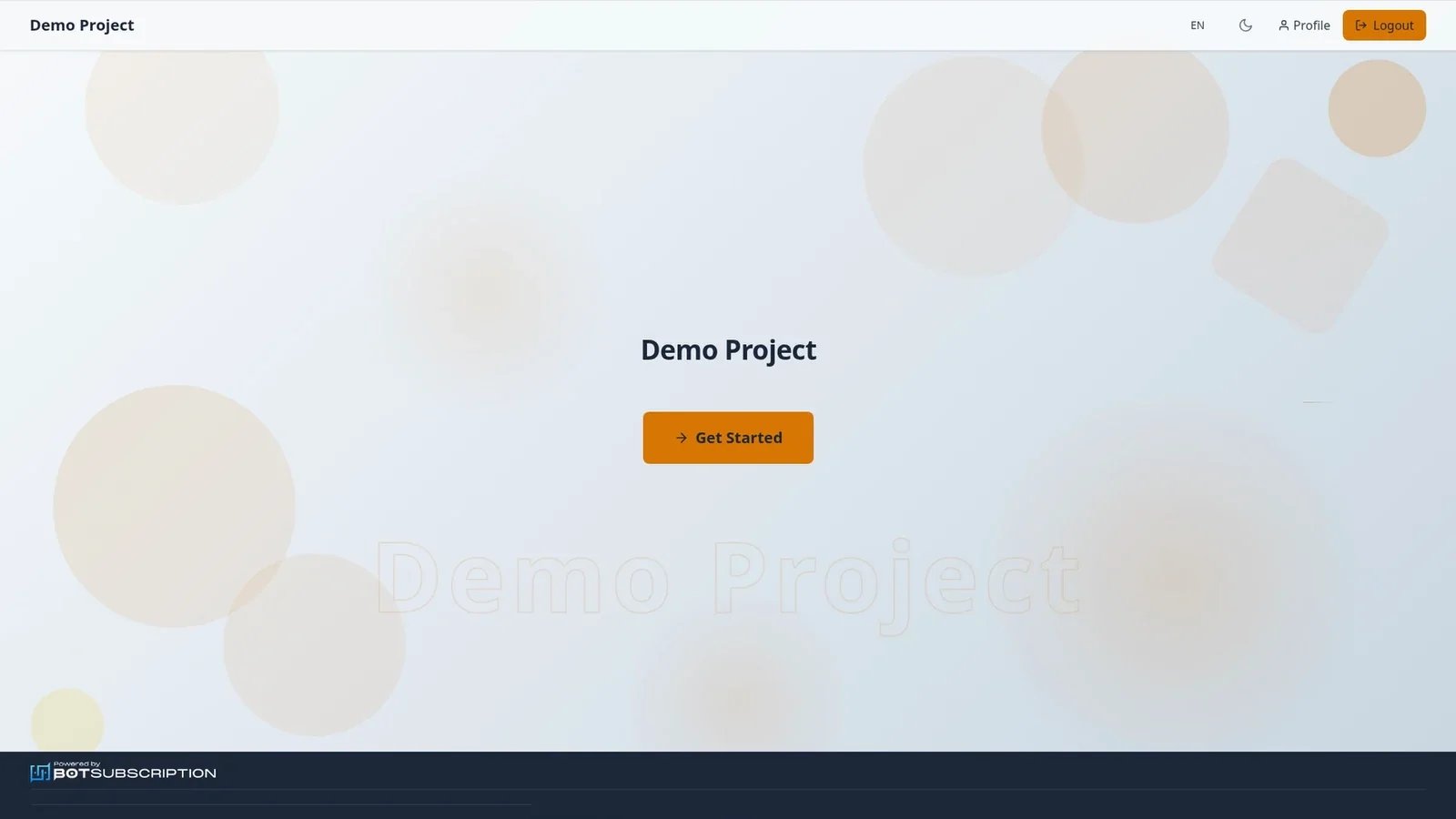
From the portal homepage, select **Profile** in the header.
 ## 2. Find the Balance card
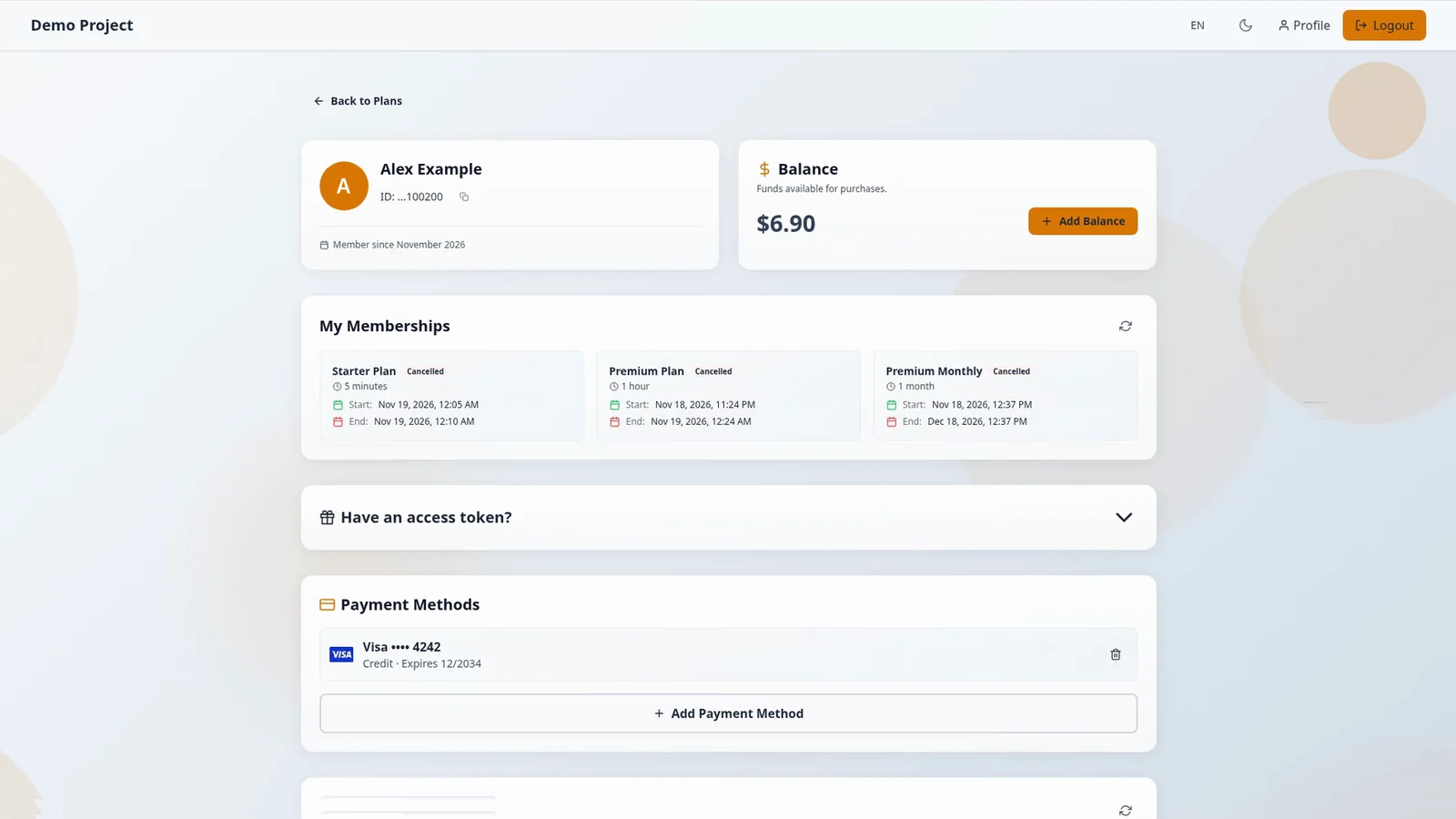
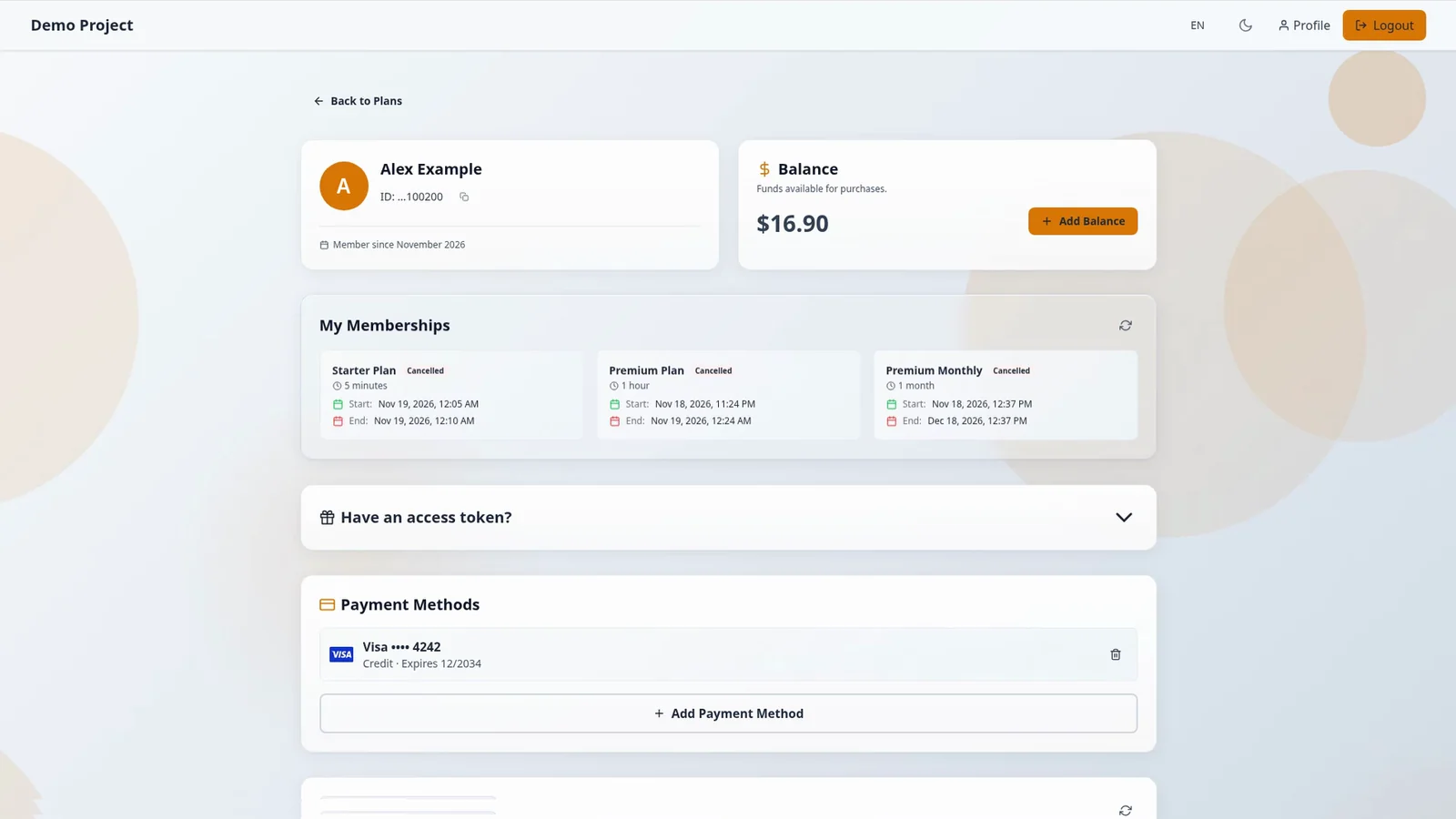
The balance is on [your Profile](https://docs.botsubscription.com/web-portal/profile/), in the **Balance** card. It reads **Funds available for purchases.** The balance belongs to this seller's portal only, and it is not shared with other sellers. In this example the balance starts at $6.90.
 ## 3. Top up your subscription balance
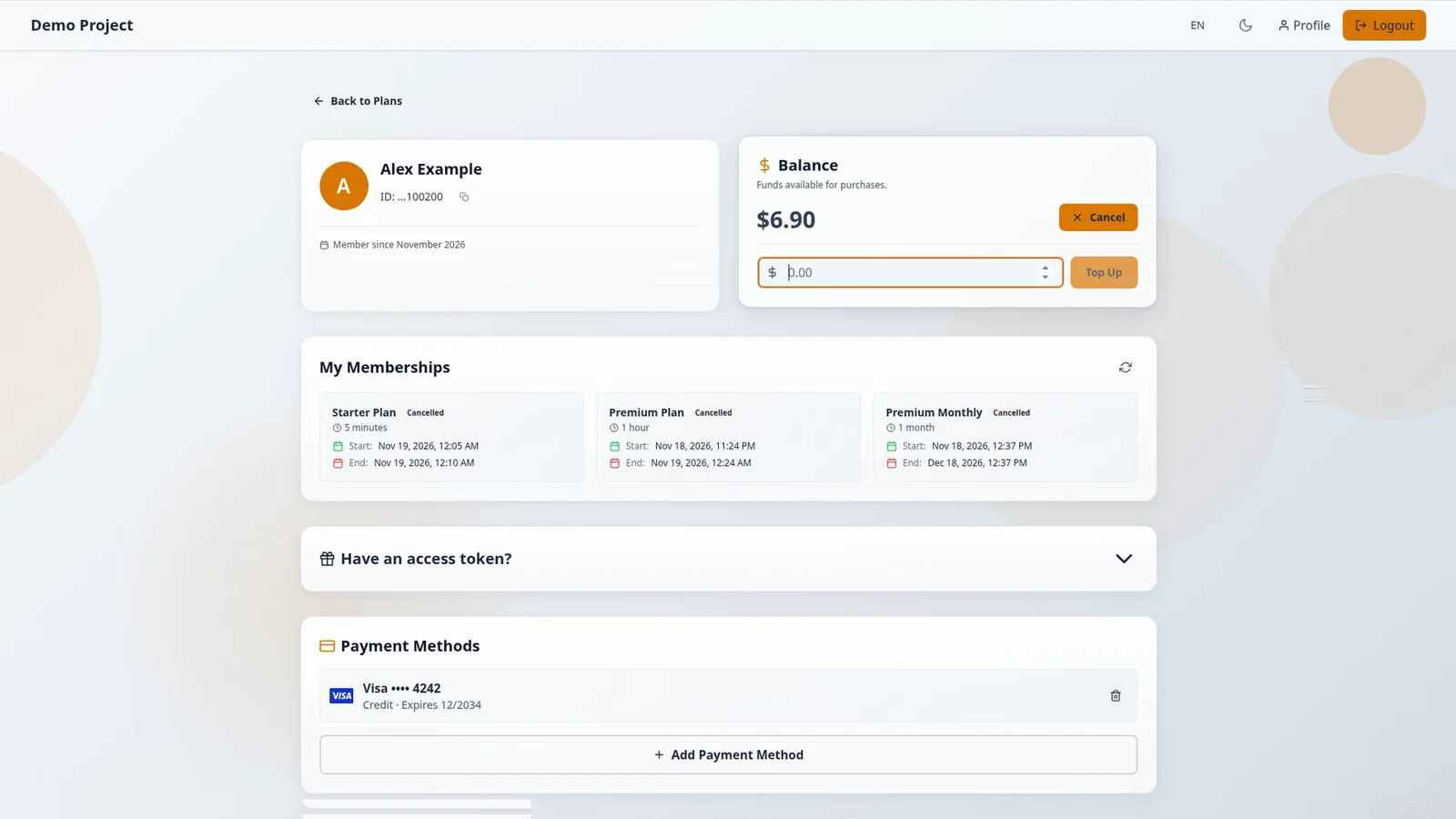
To add funds, press **Add Balance**, enter an amount, and press **Top Up**. In this example the amount is 10 dollars.
 ## 4. Pay with a saved card
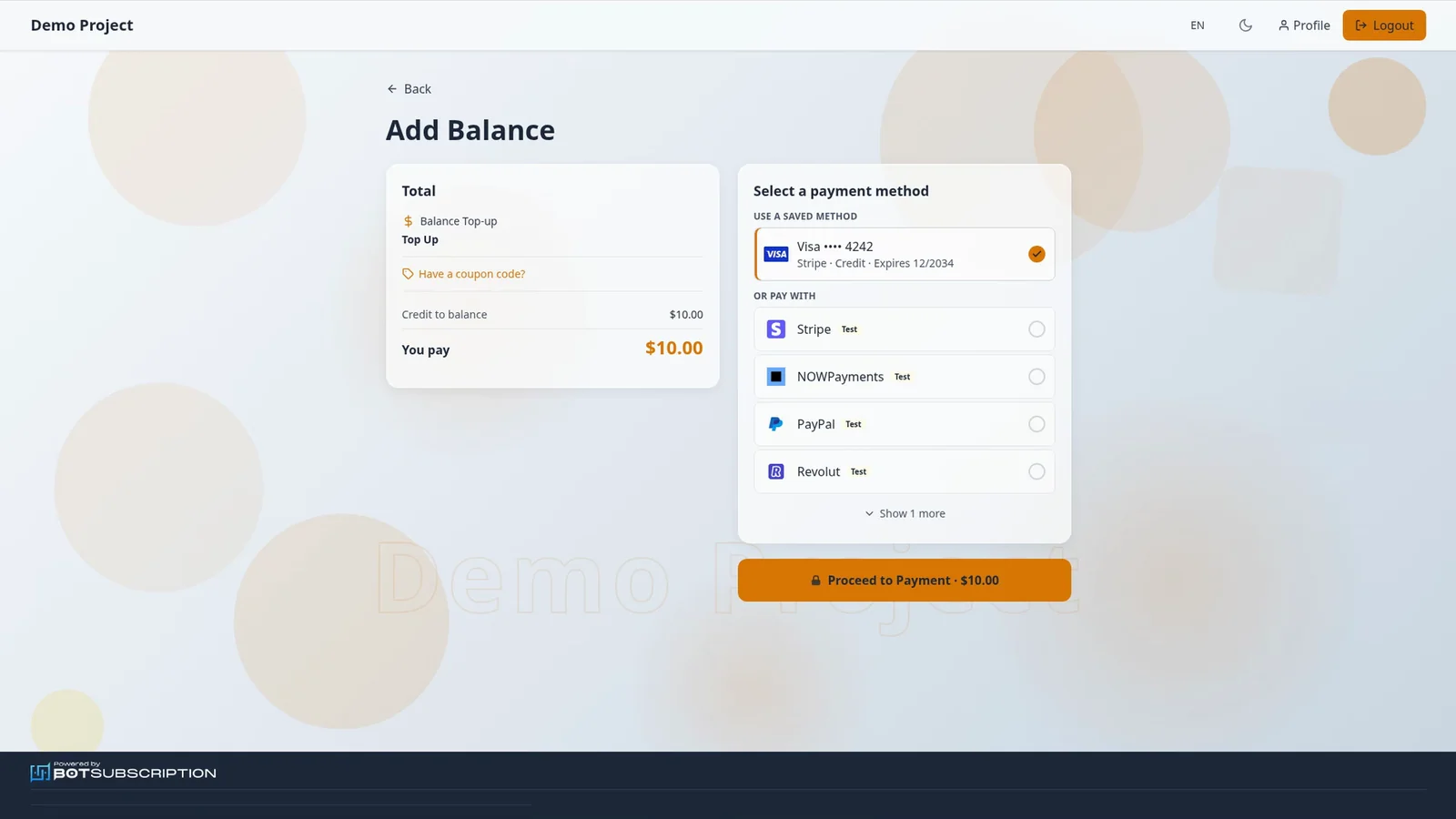
Checkout is titled **Add Balance**, and it shows what will be credited to your balance and what you pay. **Credit to balance** and **You pay** are both $10.00 in this example.
A card you saved during an earlier purchase appears under **Use a saved method**. Select that card and press **Proceed to Payment**, without entering the card details again. Under **Or pay with**, you can pay with any other method the seller offers, including when you have no saved card. A card is saved when you [buy a plan with a card](https://docs.botsubscription.com/web-portal/buy-a-plan/), if the seller's payment provider supports saved cards.
In this example the button reads **Proceed to Payment · $10.00**, and the saved card is a Visa ending 4242.
 ## 5. Confirm the top-up
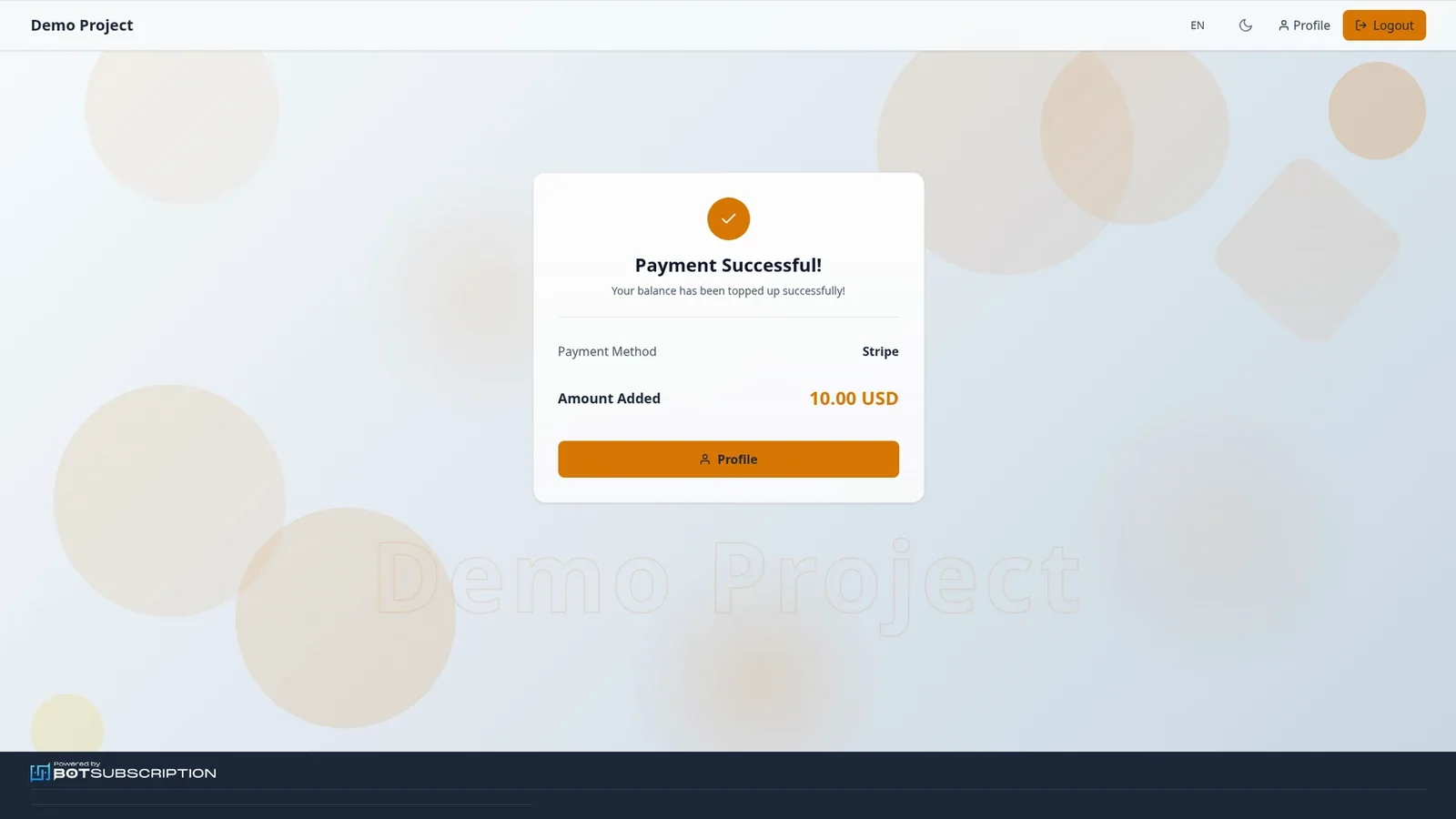
A moment later, the payment is confirmed, and the amount is added to your balance. The page reads **Your balance has been topped up successfully!** It shows Payment Method Stripe and Amount Added 10.00 USD, and **Profile** takes you back to your account.
 ## 6. See the new total
Back on your Profile, the **Balance** card shows the new total. With these example values, $6.90 + $10.00 = $16.90.
 ## 7. Find the Balance entry
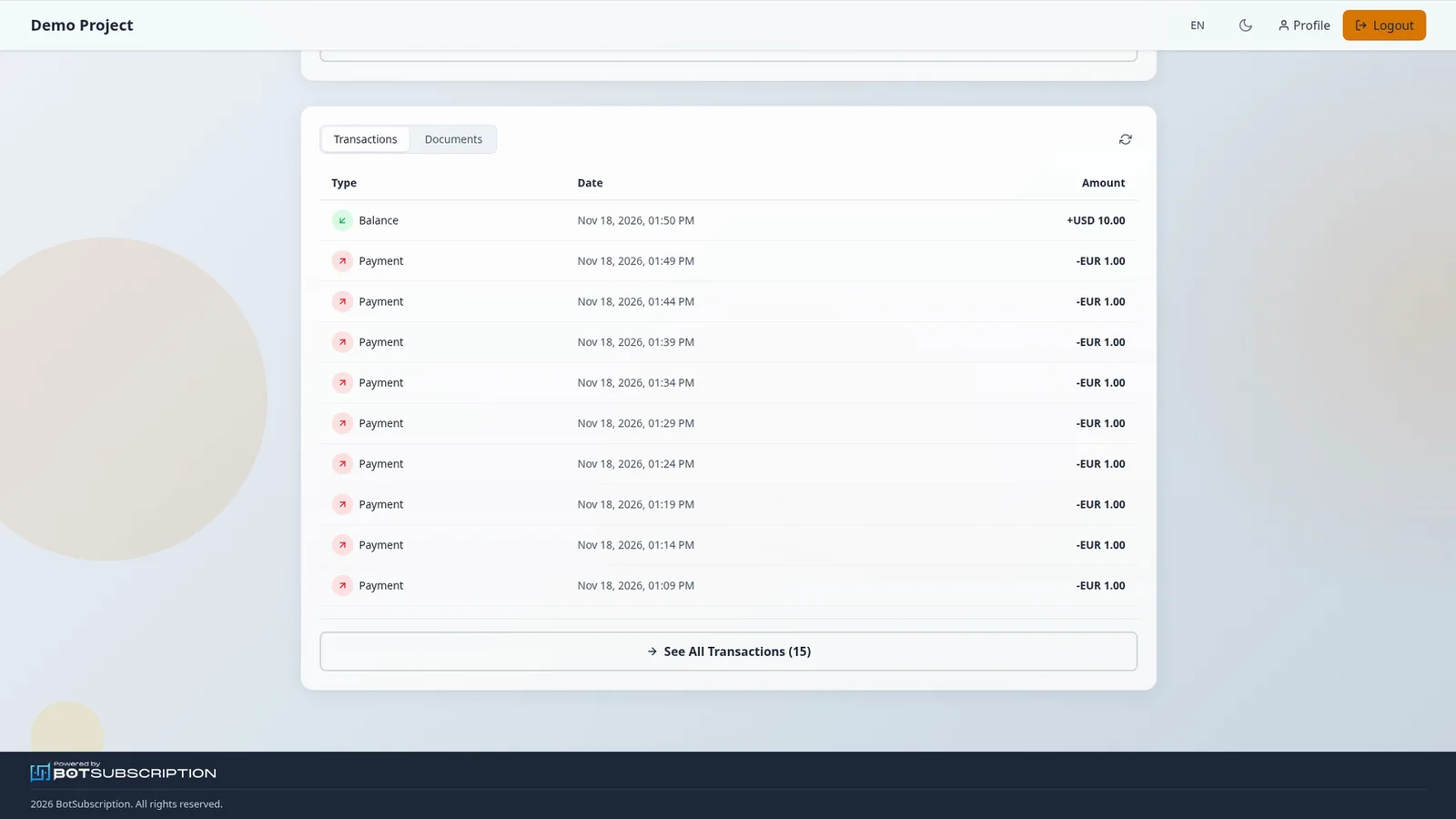
Each top-up also appears under **Transactions**, as a **Balance** entry. Look for the **+USD 10.00** Balance row, and treat the −EUR 1.00 Payment rows as example history.
 ## 8. Spend your balance on a subscription plan
You can spend your balance on plans at checkout, with **Pay with Balance**. When a membership renews, your balance is used first, if there is enough.
## Related guides
- [Buy a subscription plan on the web portal](https://docs.botsubscription.com/web-portal/buy-a-plan/)
- [Pay for a plan with your balance](https://docs.botsubscription.com/web-portal/pay-with-balance/)
- [Your Profile at a glance](https://docs.botsubscription.com/web-portal/profile/)
- [Web Portal overview](https://docs.botsubscription.com/web-portal/)