

Fixing Discord Role Hierarchy Issues
When launching your Discord subscription bot using our Discord setup guide, you want a completely seamless onboarding experience for your premium members. However, a common blocker is when role delivery fails, triggering a "Role Assignment Failed: Hierarchy Issue" alert.
This guide explains what the Discord role hierarchy is, why role assignment fails, and the simple steps required to resolve the issue so your members receive instant access.
Why This Happens (The Discord Hierarchy Rule)
Discord uses a strict security model called Role Hierarchy to govern permissions. Under this model, any bot (or server administrator) can only manage, assign, or remove roles that are physically below its own highest role in the server settings.
When you authorize the bot, Discord automatically creates a managed role named after the bot (e.g., BotSubscription for the hosted bot, or your custom bot's name if you self-host). This is the role you'll need to reposition.
If a premium role (for example, @Football or @Basketball) is positioned above the bot's role, Discord's API blocks the bot from granting it.
👑 SERVER OWNER (You)
 ├── Admin / Mod Roles
 ├── 🤖 BotSubscription (Bot Role)   <-- MUST be here or higher!
 ├── 👥 @Members (Premium Role)      <-- Bot can now manage this role
 ├── 🎾 @Tennis (Premium Role)       <-- Bot can now manage this role
 ├── 🏈 @Football (Premium Role)     <-- Bot can now manage this role
 ├── 🏀 @Basketball (Premium Role)   <-- Bot can now manage this role
 └── @everyone
Discord does not allow bots to edit or assign roles that are higher than their own. Arranging your roles correctly is essential to automate your paid Discord server.
Where Hierarchy Alerts Appear
When role assignment fails due to a hierarchy conflict, the bot sends an alert directly to your configured backoffice / admin channel. You will see the following message:
Role Assignment Failed: Hierarchy Issue
Failed to assign roles to member @Username due to Discord role hierarchy.
Affected Roles: @Football
Resolution: Move the bot's role above these roles in Server Settings → Roles.
This proactive notification allows you to address the configuration error immediately, even if no member reports it.
Step-by-Step Resolution Guide
Step 1: Open Your Server Settings
Open Discord on your desktop or web browser. Click your server's name (①) in the top-left corner of the window to open the dropdown, then click Server Settings (②).
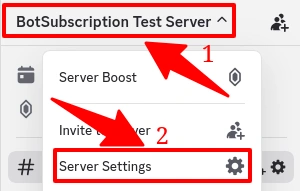 Click your server name (①) and then select Server Settings (②).
Step 2: Go to the Roles Settings
In the left-hand sidebar, scroll down to the People section and click Roles. The server's role list will display on the right, showing every role in order of hierarchy from highest to lowest.
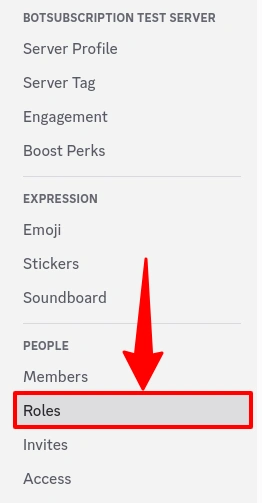 Scroll to the People section in the sidebar and click Roles.
Step 3: Rearrange the Bot Role
Locate your bot's managed role (e.g., BotSubscription) and the premium roles you want members to receive (such as @Members, @Tennis, @Football, or @Basketball). Click and hold the drag handle (⠿) on the left side of the bot's role, then drag it upward until it sits above all the premium roles it needs to manage.
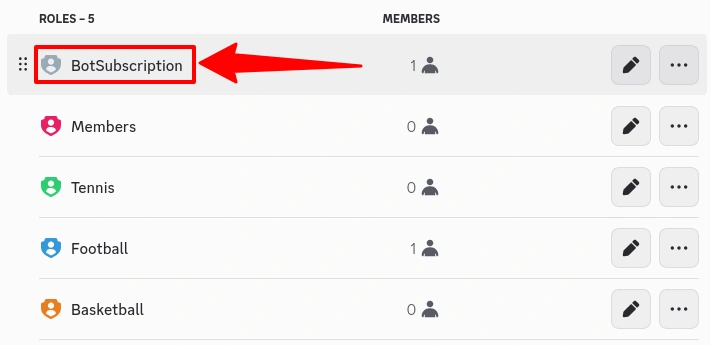 The BotSubscription role (highlighted) is positioned above all premium subscriber roles.
Step 4: Save Your Changes
Click the Save Changes button in the green banner at the bottom of your screen to update your server's role permissions.
FAQ
What if I cannot drag the BotSubscription role?
If the role appears locked or you cannot drag it, you are likely not logged in as the Server Owner, or your personal highest role is below the bot's role. Ask the server creator to perform these steps.
Do I need to give the bot Administrator permission?
No, and it is recommended to follow the principle of least privilege for security. The bot needs the Manage Roles permission to assign subscriber roles. For channel creation (including category-restricted channels with permission overwrites), it additionally needs Manage Channels. While Administrator works as a shortcut, it grants far more access than necessary. Explicit permissions are recommended.
Can I put the bot above my Administrator role?
You can, but it is not necessary. The bot only needs to be positioned above the specific premium roles that you link to your subscription plans in the Discord configuration guide. It does not need to be above moderator or admin roles.
Can the bot manage other bot-managed roles?
No. Discord completely forbids any integration from managing other "managed roles" (auto-created roles for other bot integrations), regardless of their position in the hierarchy. The bot can only manage standard, manually created roles.
Will members who purchased during the hierarchy issue get their roles?
Yes. Once you fix the role hierarchy, any member with an active subscription can run /claim in your server and the bot will re-assign their subscriber roles automatically. Future purchases will also be processed normally. You only need to assign roles manually if the member has left and rejoined without running /claim.