

Cancel a subscription on the subscription bot web portal
Payments and balance top-ups on a web portal go to the seller's own merchant account. That account is their Stripe, PayPal, NOWPayments, or another provider. The money does not go to BotSubscription, and the web portal is the seller's storefront. Payments to BotSubscription itself happen only in the BotSubscription dashboard.
The plan name in the question is the plan on that membership, and Starter Plan is example data.
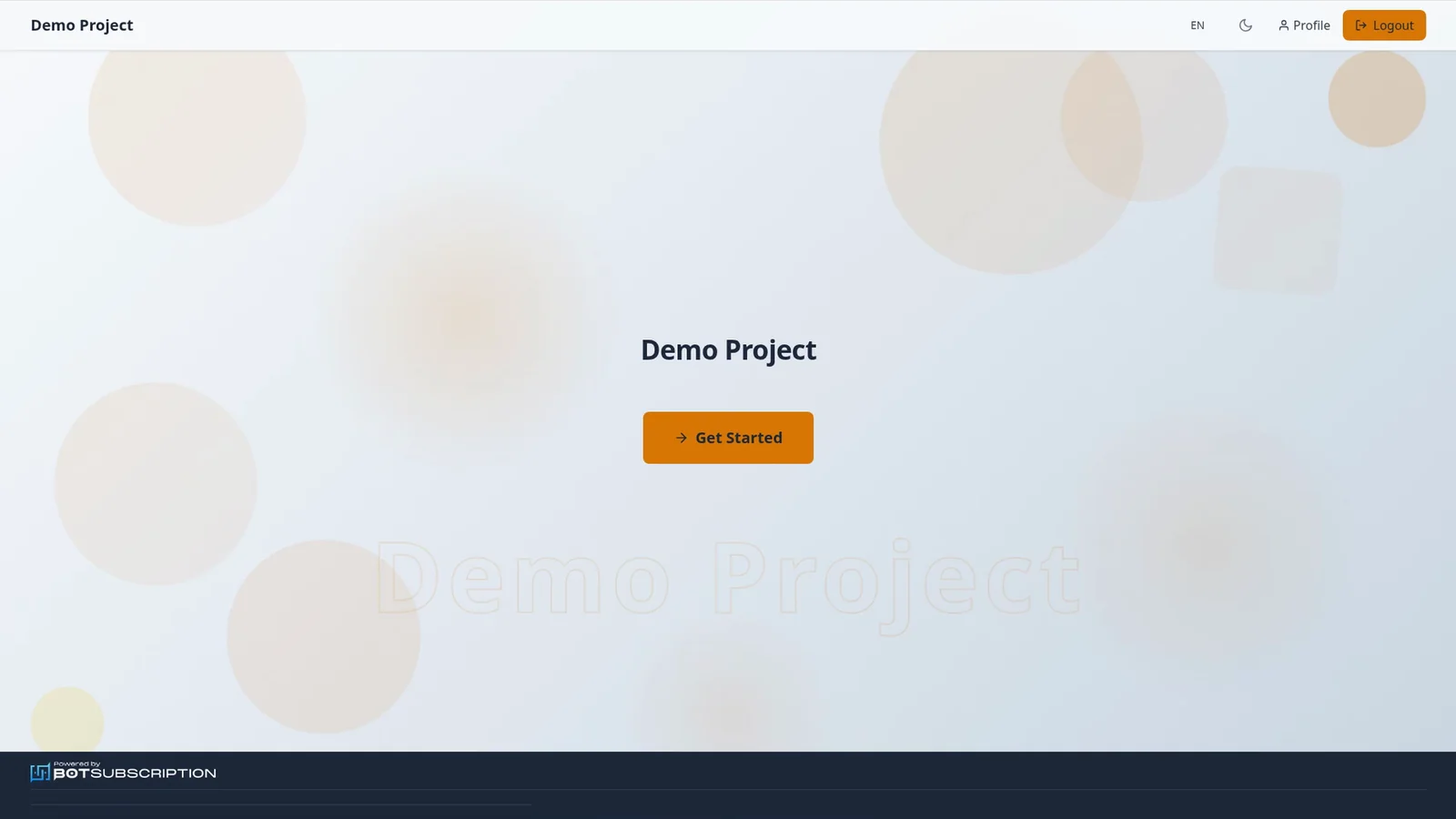
Cancel a plan from the homepage of a Telegram or Discord subscription bot web portal.
1. Open Profile from the homepage
From the portal homepage, select Profile in the header.
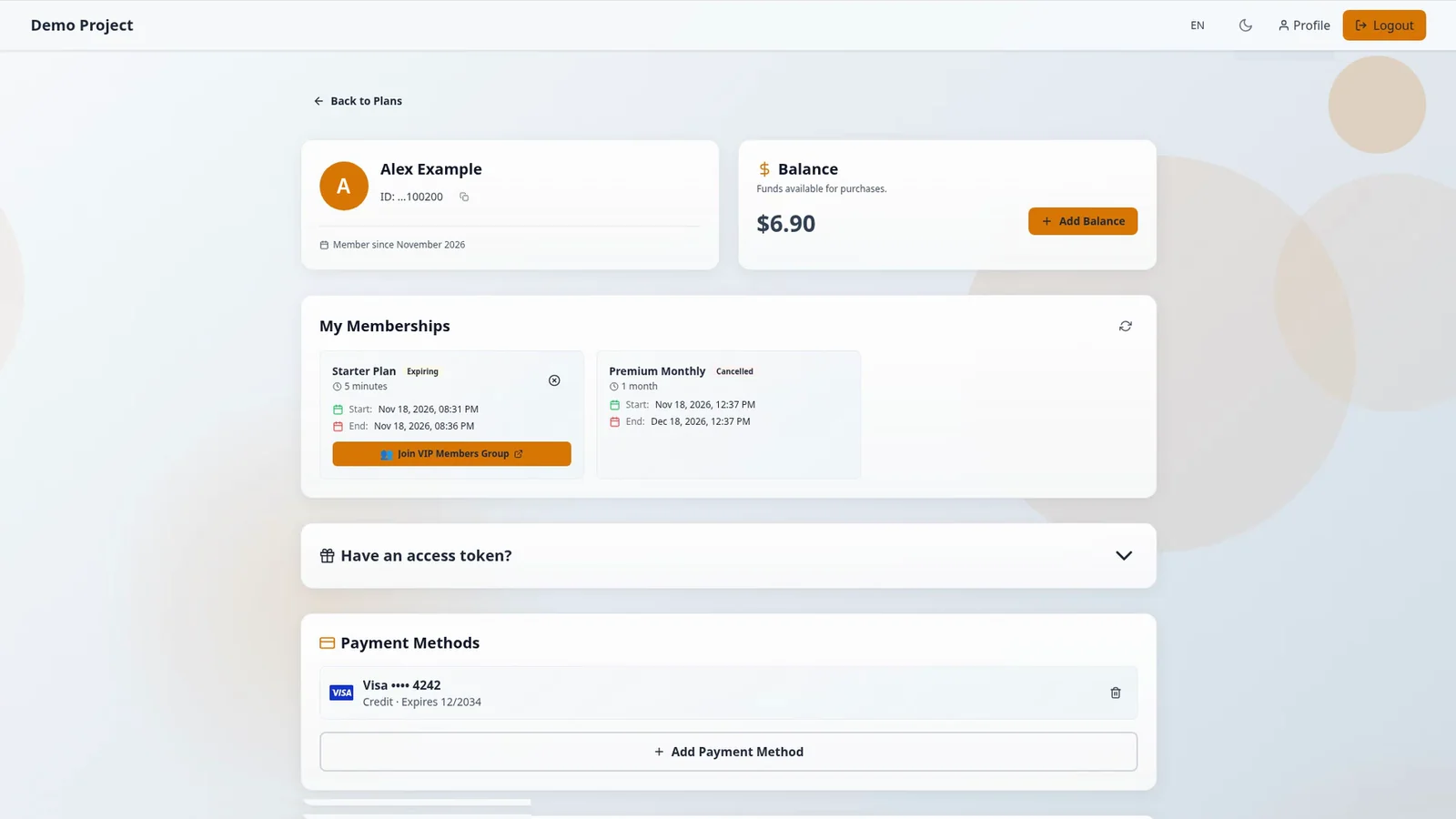
2. Open My Memberships
From Profile, open My Memberships to see the plan on your membership.
3. Select the cancel icon
On that plan, select the cancel icon, whose tooltip says Cancel Subscription.
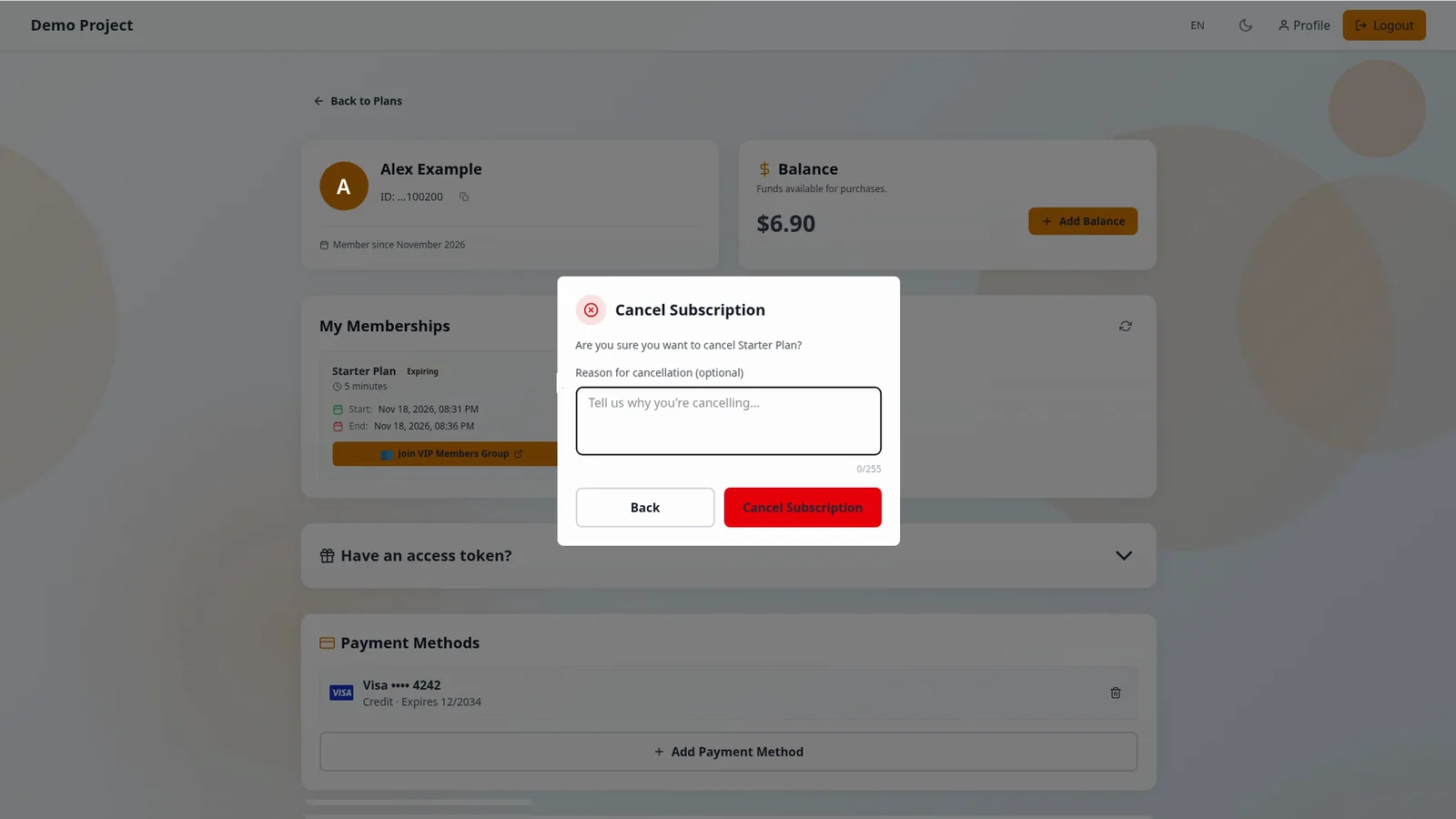
4. Confirm in Cancel Subscription
A dialog titled Cancel Subscription asks "Are you sure you want to cancel" and then the plan name. It has an optional Reason for cancellation field, and the buttons Back and Cancel Subscription. You confirm with Cancel Subscription. The seller sees the reason you give in their cancellation notification.
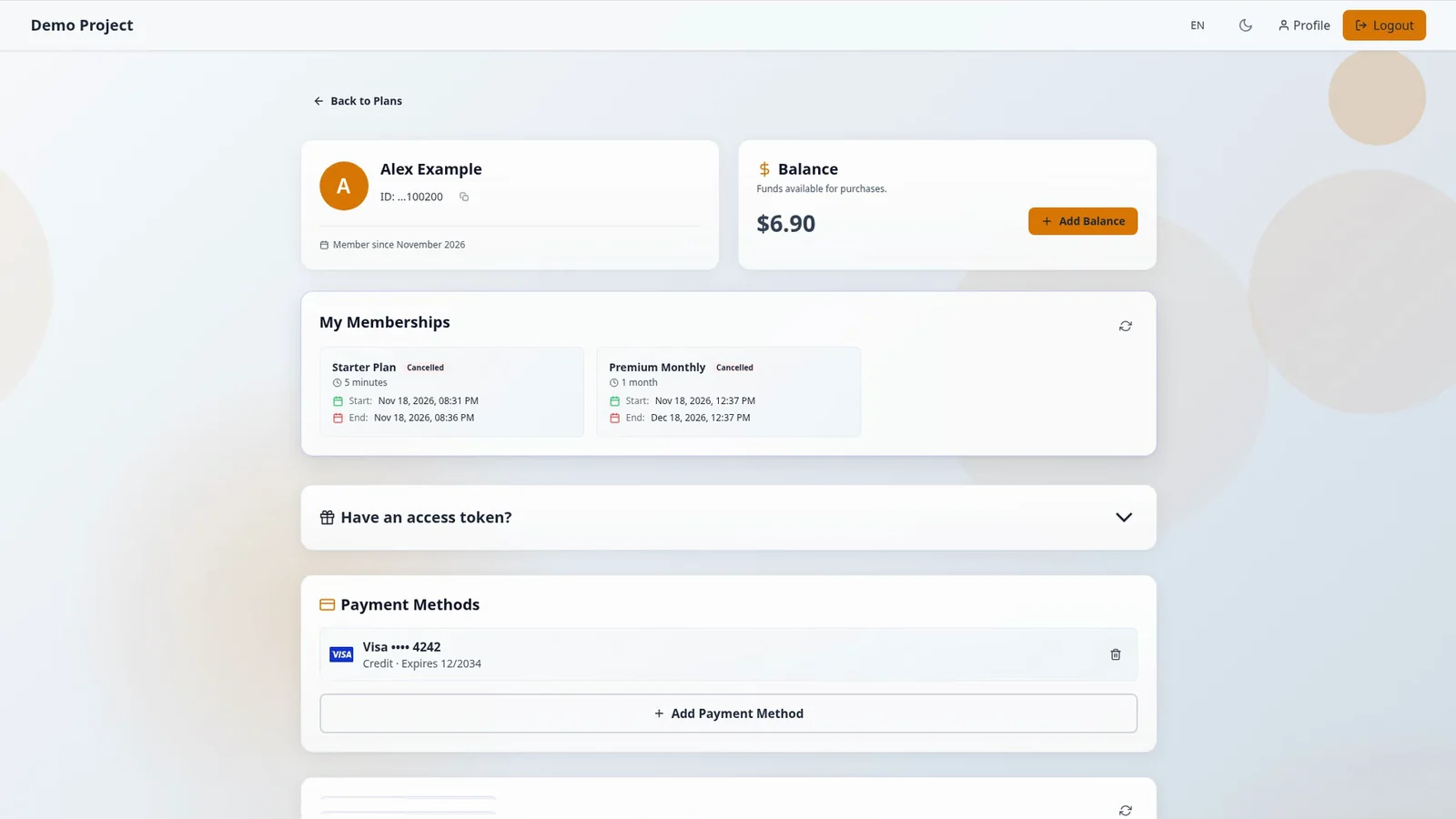
5. See the Cancelled subscription
The membership status shows Cancelled, and if it hasn't updated, press the refresh icon next to My Memberships.
What cancelling a subscription does
Cancelling only stops renewal, and access lasts until the end date, which doesn't change. There is no refund or proration, and a cancelled subscription can't be resumed. You can buy the same plan again only after the current period ends.