

Buy a subscription on the bot web portal
Payments and balance top-ups on a web portal go to the seller's own merchant account. That account is their Stripe, PayPal, NOWPayments, or another provider. The money does not go to BotSubscription, and the web portal is the seller's storefront. Payments to BotSubscription itself happen only in the BotSubscription dashboard.
Demo Project, Alex Example, Starter Plan, Premium Plan, Premium Monthly, VIP Members Group, the prices, and the saved test card are example values only.
Buy a plan with a saved card on a Telegram or Discord subscription bot web portal.
1. Start from the portal homepage
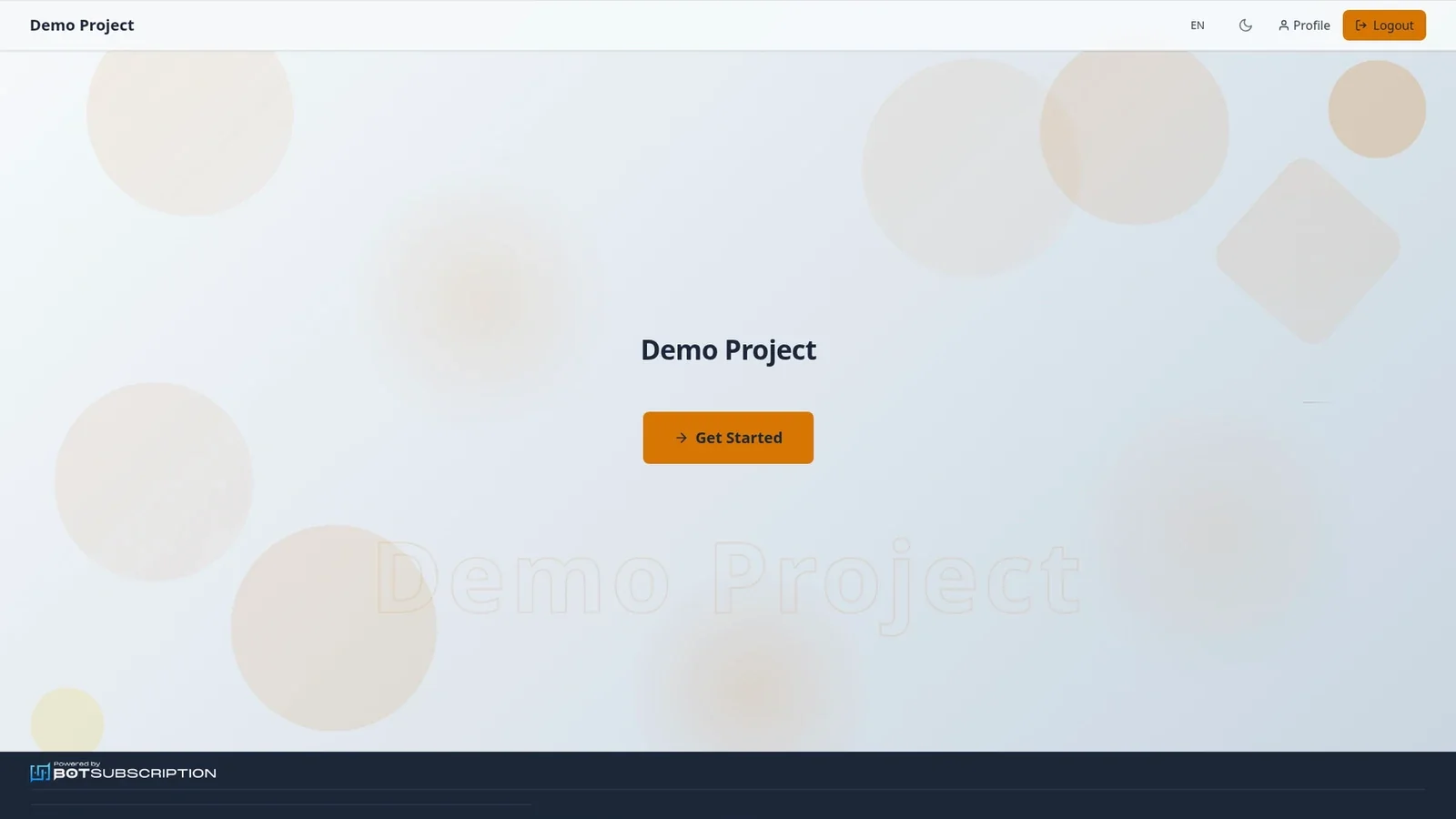
On the portal homepage, select Get Started to open the plans. Profile in the header opens your account at any time.
2. Choose a subscription plan
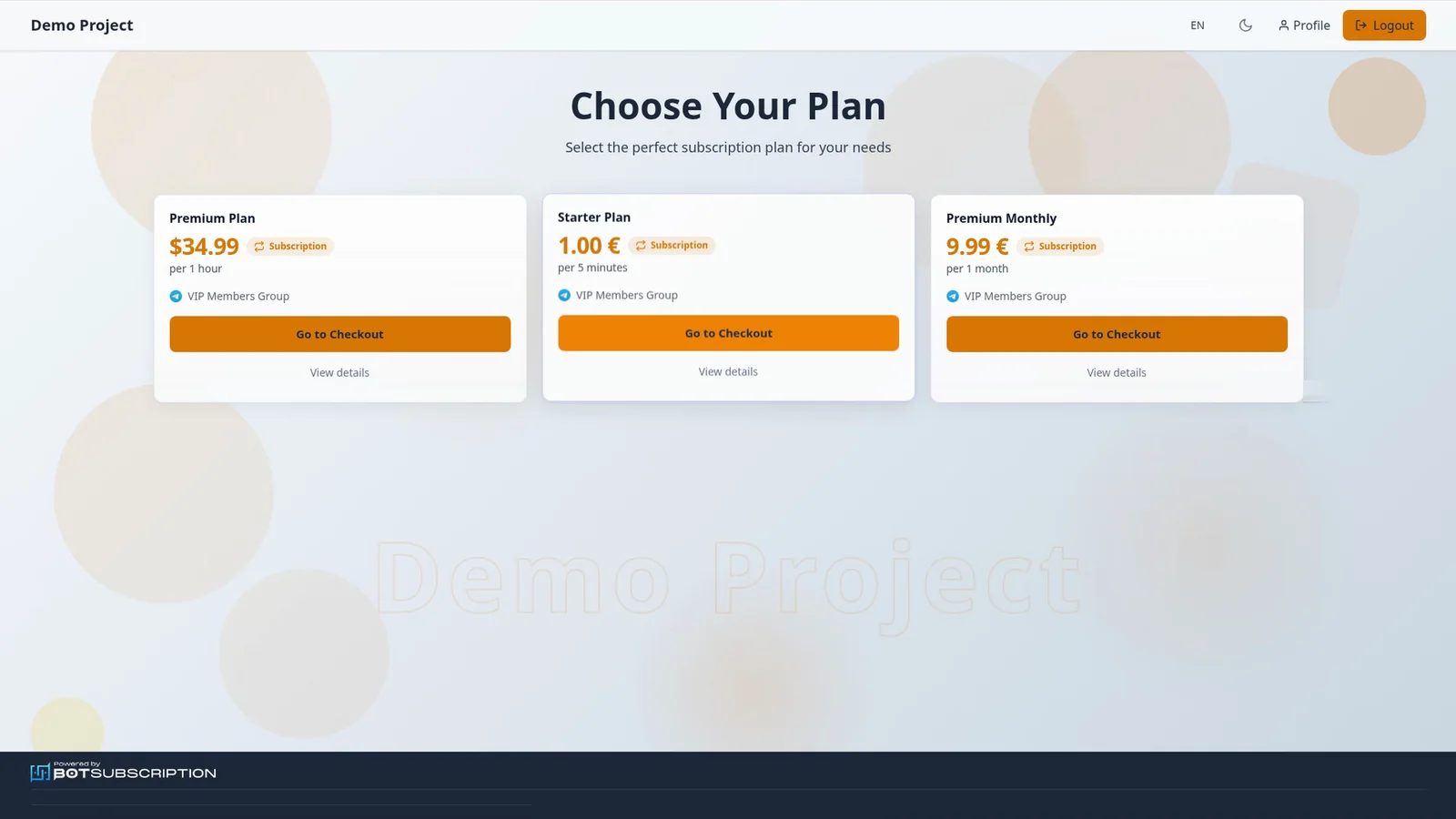
The plans page is titled Choose Your Plan, and each plan card shows the price and the billing period. Choose a plan, then press Go to Checkout.
In this example, Premium Plan is $34.99 per hour, Starter Plan is €1.00 per 5 minutes, and Premium Monthly is €9.99 per month. All three unlock VIP Members Group, and this walkthrough buys Starter Plan.
3. Pay with your saved card
Checkout shows Overview of Your Order with the plan, the billing period, and the total, next to Select a payment method. A card you saved earlier appears under Use a saved method. Select that card, then press Proceed to Payment. You pay right on the portal, without entering the card details again.
In this example the total is €1.00, the saved card is a Visa ending 4242, and the button reads Proceed to Payment · €1.00. Under Or pay with, you can choose any other method the seller offers.
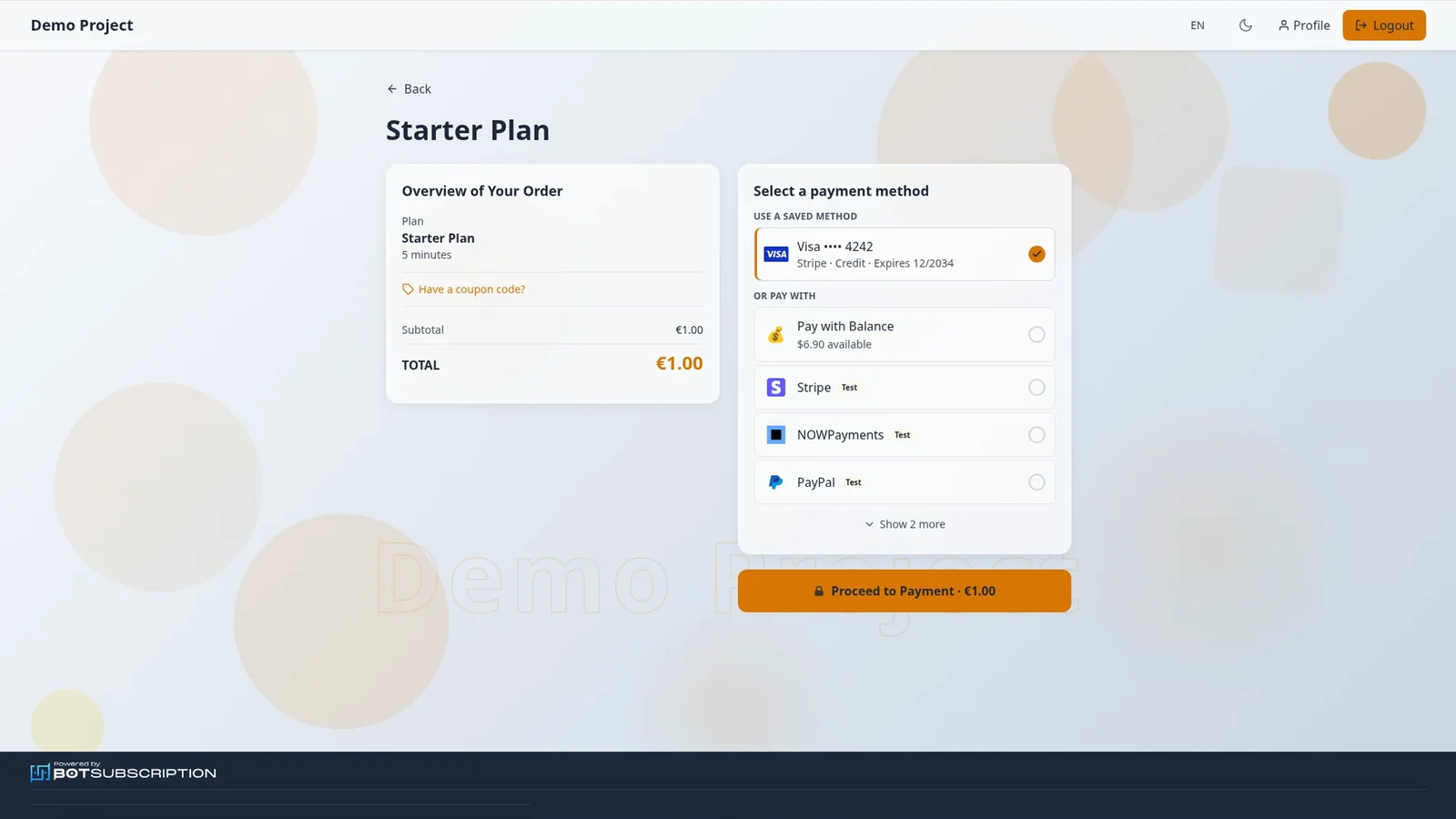
No saved card yet? Under Or pay with, pick Stripe and press Proceed to Payment. Stripe's secure page opens, where you enter your card details and press Pay. When the seller's payment provider supports saved cards, as Stripe does in this example, the portal saves that card under Payment Methods automatically, so next time it appears under Use a saved method.
4. Confirm Payment Successful
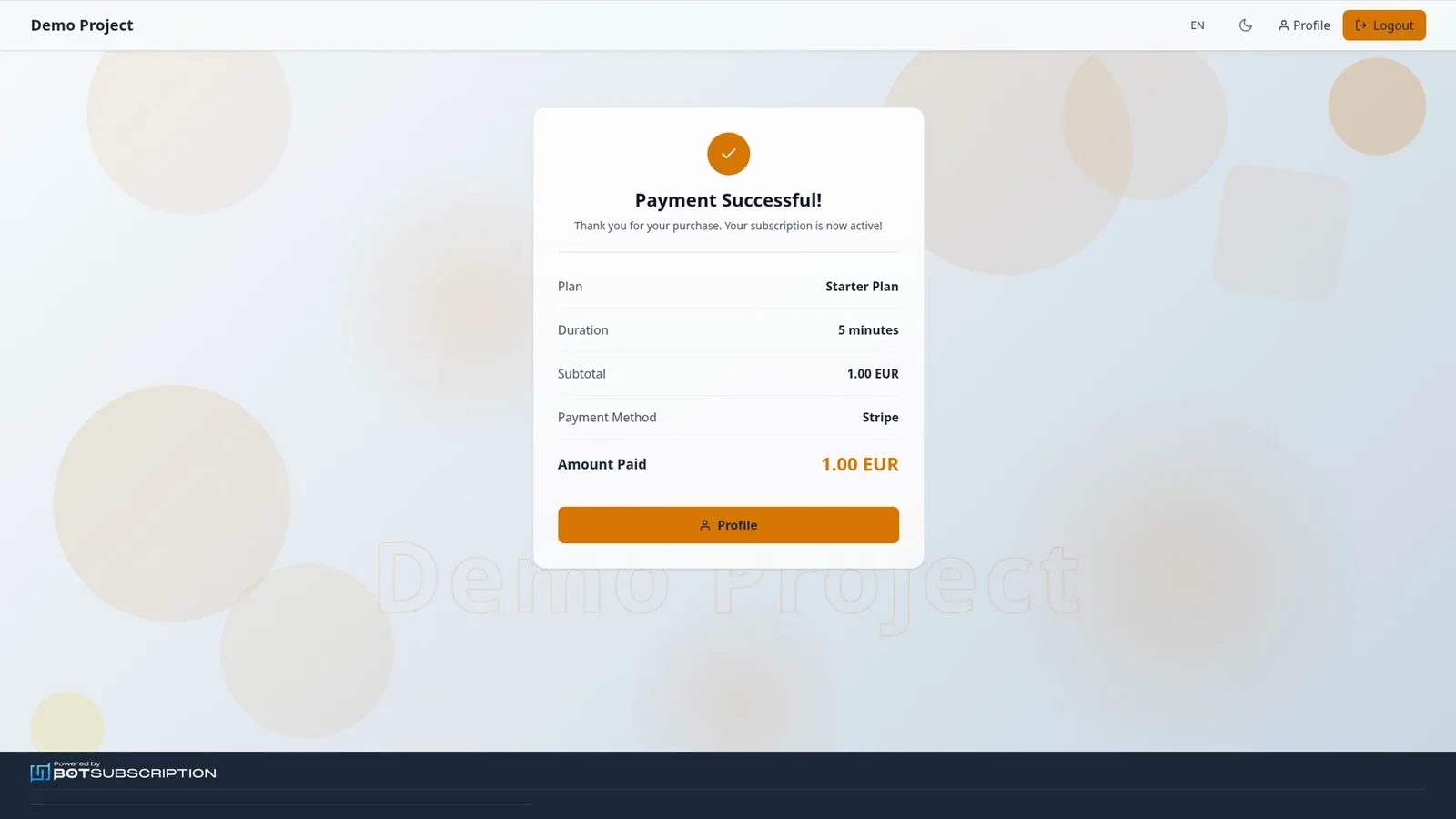
After you pay, the Payment Successful page confirms the purchase, with the plan, the duration, the amount paid, and the payment method. In this example it shows Starter Plan, 5 minutes, 1.00 EUR, and Stripe. Profile opens your account on this portal.
5. Find the membership under My Memberships
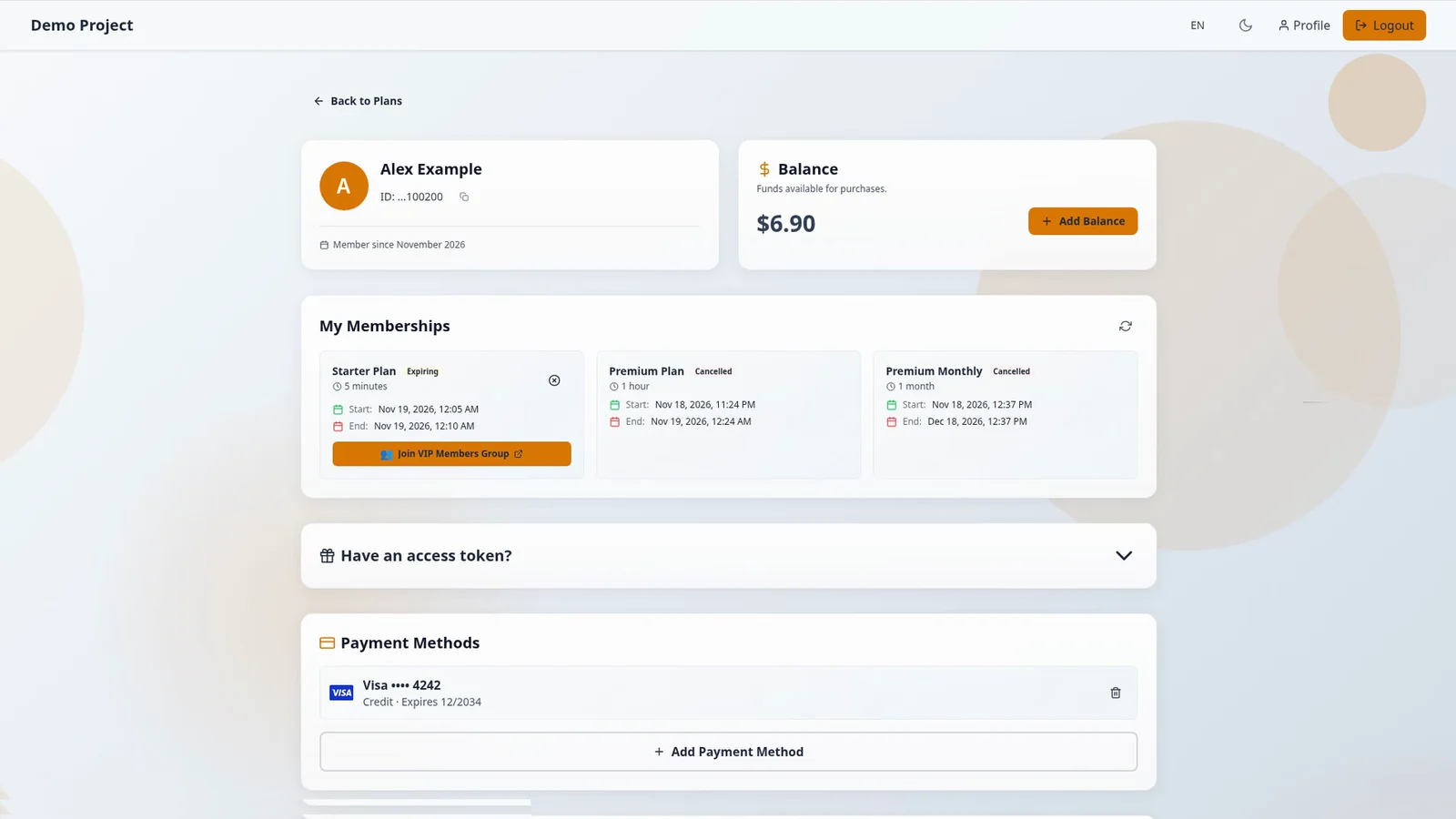
In Profile, the new membership appears under My Memberships, with its start date and its end date. It stays active until the end date.
6. Join on Telegram or Discord
For a Telegram group or channel, press Join VIP Members Group. That button gives you a personal request-to-join link that lasts up to 24 hours and never past your membership end date. If it expires, press Join again to get a new one. On Discord, your role is assigned automatically if your portal account is linked to Discord. If you're already in the server, you get the role when the membership activates. Otherwise Join gives you a server invite, and the role is applied when you join.
The payment also appears under Transactions on your Profile.