

Project Settings in the Dashboard
Project Settings is where you configure how your Telegram subscription bot or Discord payment bot behaves. It covers language, member messages, community controls, sales, policies, notifications and more. This page walks through each section.
Open Project Settings
In dash.botsubscription.com, open your project and go to Setup → Settings.
The left-hand menu lists every section. Select a section to open it on the right:
- Language & Time
- Welcome Message
- Community Controls
- Sales & Subscriptions
- Policies
- Notifications
- Project Settings
- Environment
- Web Portal
- Automated Follow-Ups
- Custom Member Messages
- Telegram Webhook
- Access Codes
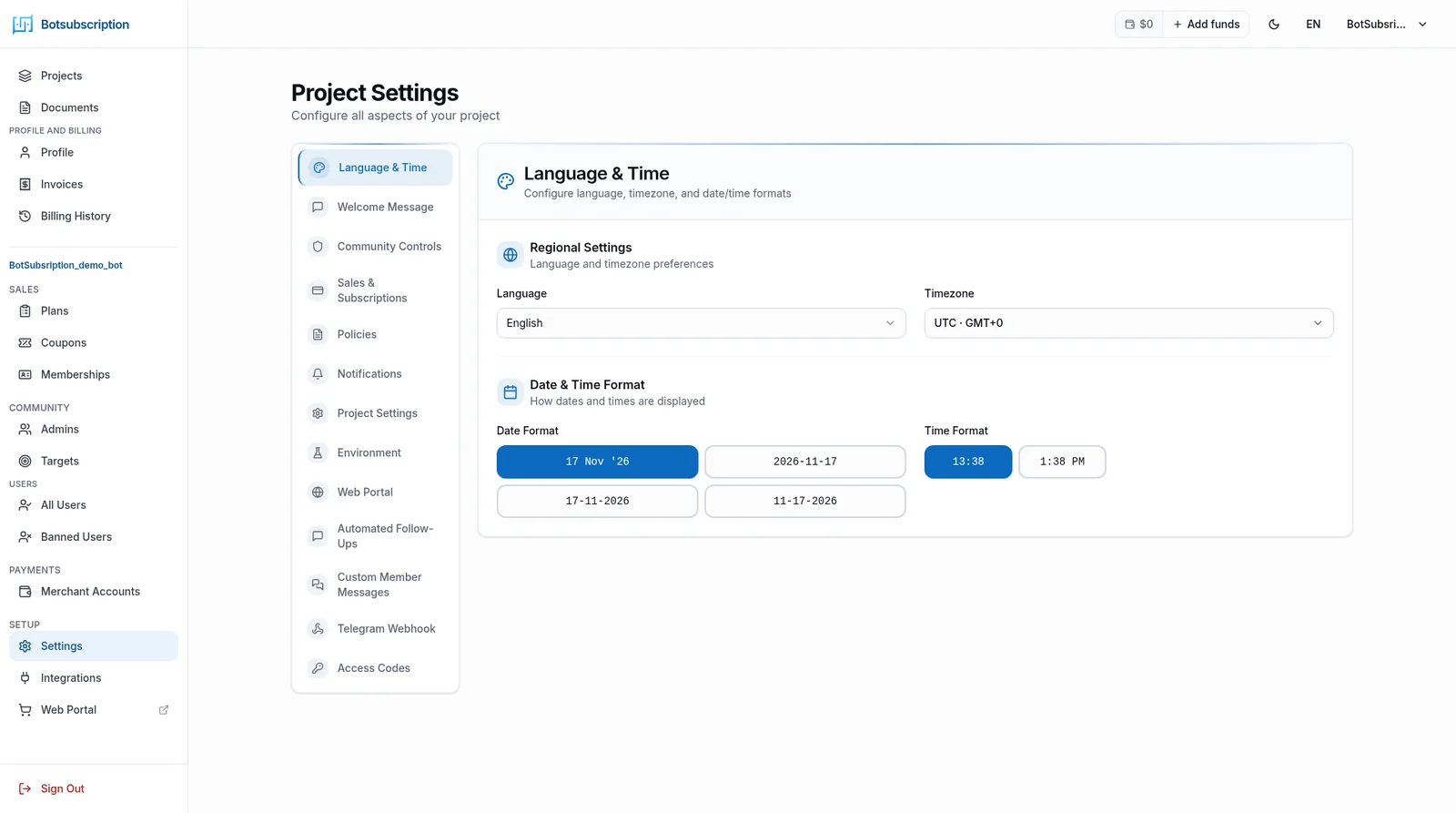
Language & Time
Configure the language, timezone, and date and time formats for your project.
- Regional Settings - pick the Language and the Timezone, for example UTC · GMT+0.
- Date & Time Format - choose how dates appear (such as 17 Nov '26, 2026-11-17, 17-11-2026 or 11-17-2026) and whether times use a 24-hour or 12-hour clock.
Welcome Message
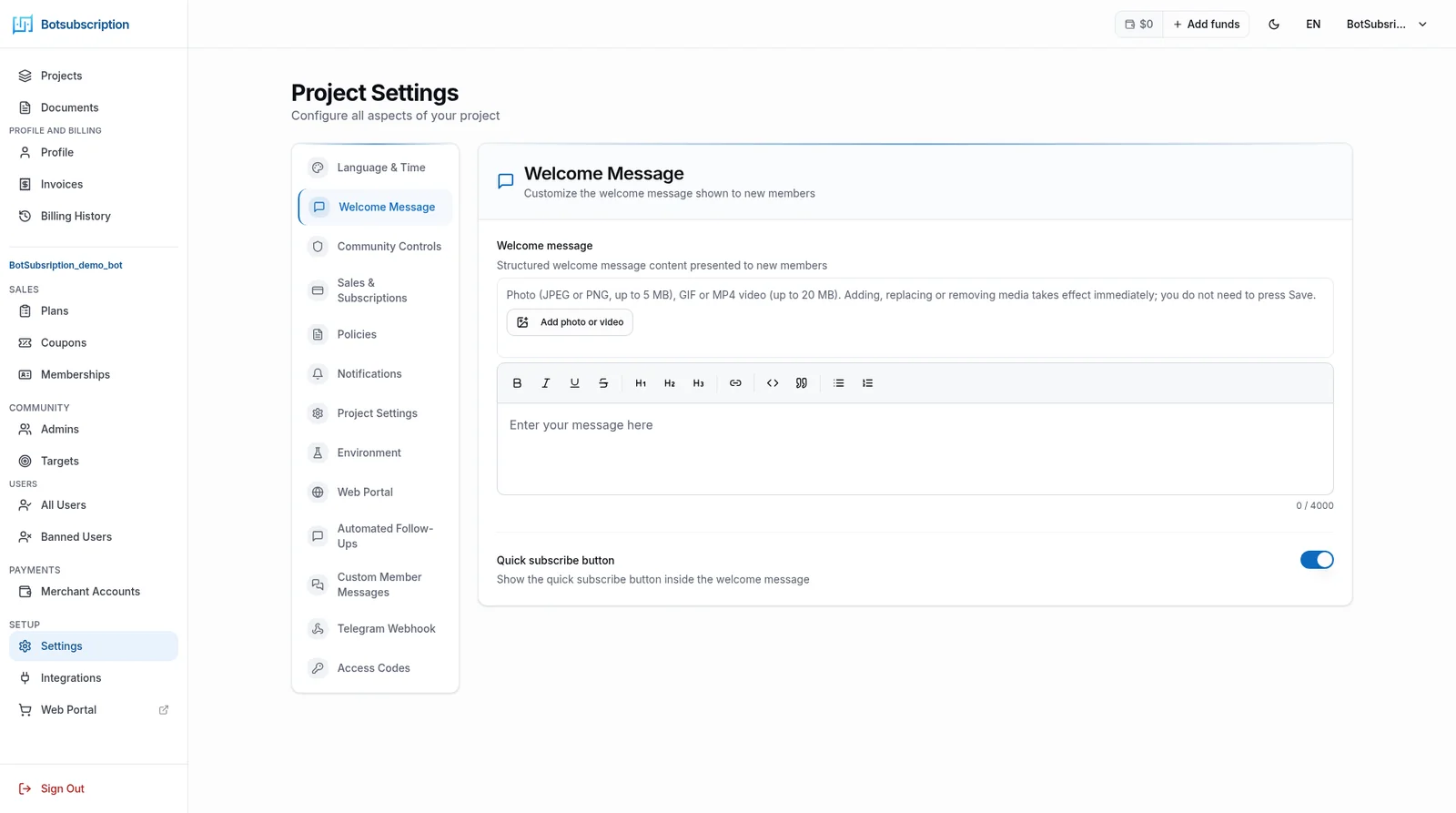
Customize the welcome message shown to new members.
- Welcome message - add an optional photo (JPEG or PNG, up to 5 MB), GIF or MP4 video (up to 20 MB), then write the text in the editor. The text can be up to 4000 characters. Adding, replacing or removing media takes effect immediately, without pressing Save.
- Quick subscribe button - show a quick subscribe button inside the welcome message.
Community Controls
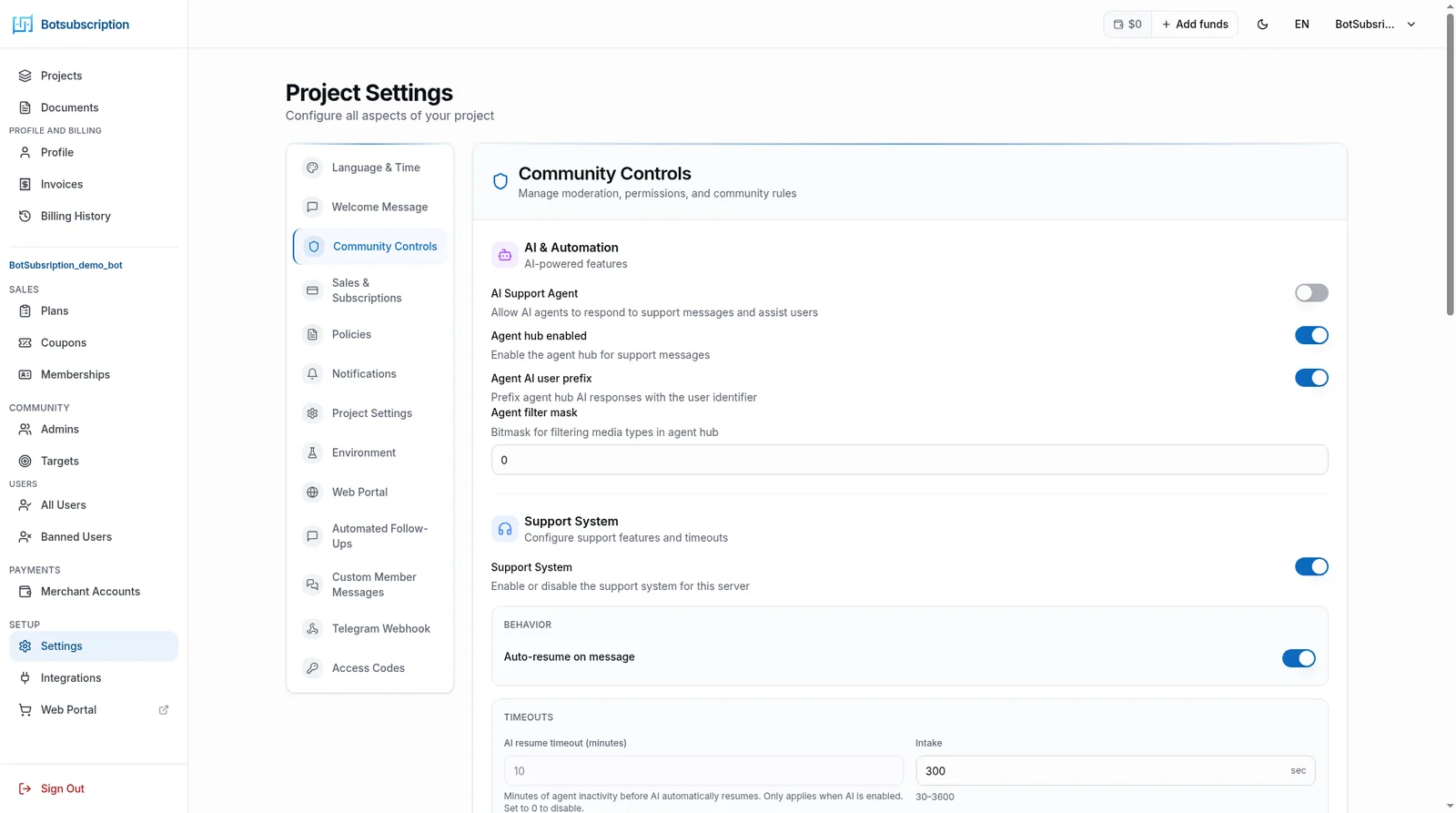
Manage moderation, permissions and community rules. The section is grouped into several blocks:
- AI & Automation - AI-powered features: AI Support Agent, Agent hub enabled, Agent AI user prefix and Agent filter mask.
- Support System - turn the support system on or off and set its behavior, such as Auto-resume on message.
- Timeouts - AI resume timeout (minutes), Intake (30-3600 seconds) and Auto-close (0-720 hours).
- Backoffice Destinations - private destinations for Payments, Notifications and Support events.
- Auto Broadcast - send every new post from one of your Telegram channels to a chosen audience automatically. Pick a Source channel and an Audience before switching it on.
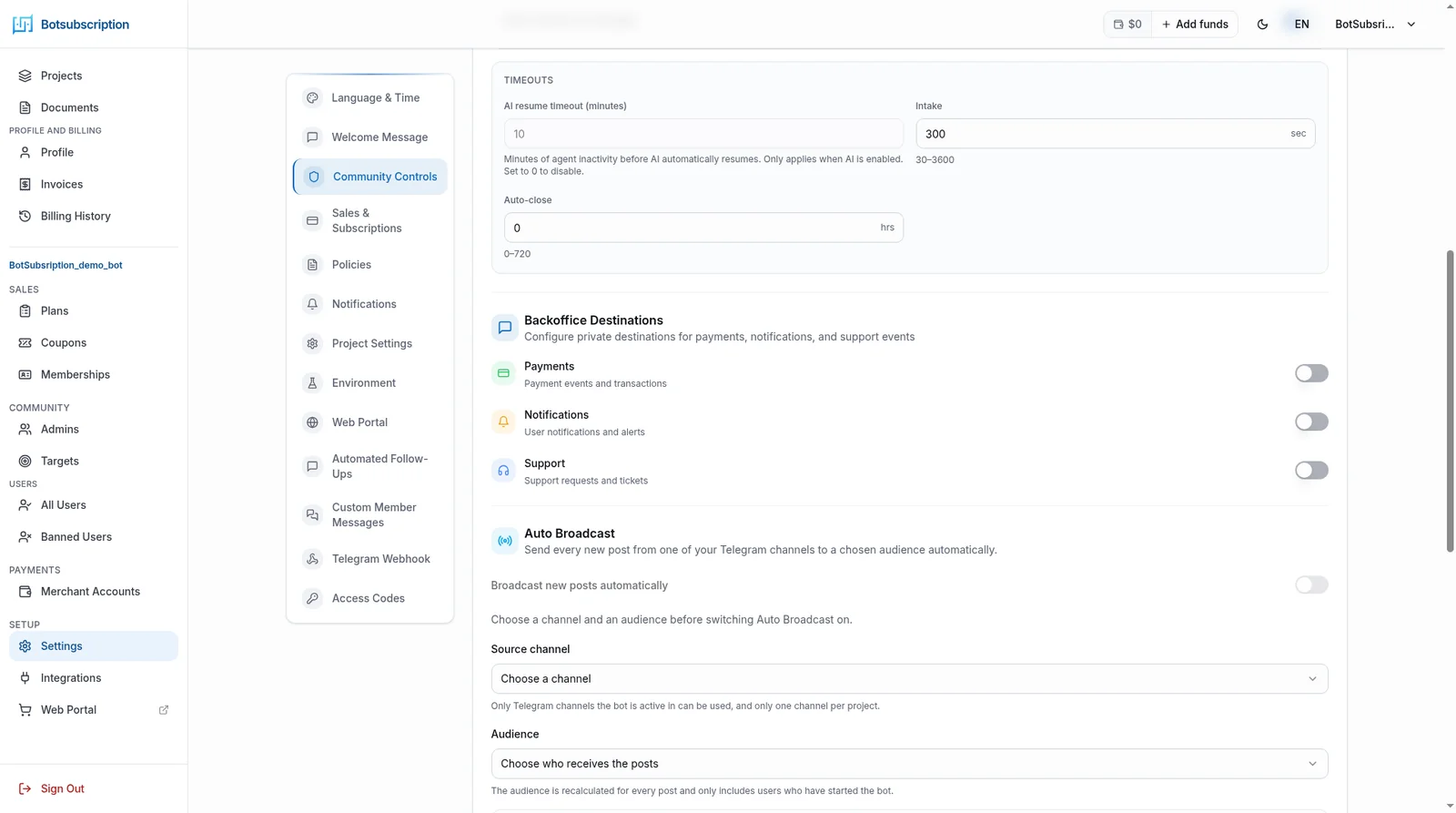
For Auto Broadcast, only Telegram channels the bot is active in can be used, and only one channel per project. The audience is recalculated for every post and only includes users who have started the bot. At most 5 posts per minute are forwarded, albums are skipped, and a post that would reach more than 20,000 recipients is not sent.
Sales & Subscriptions
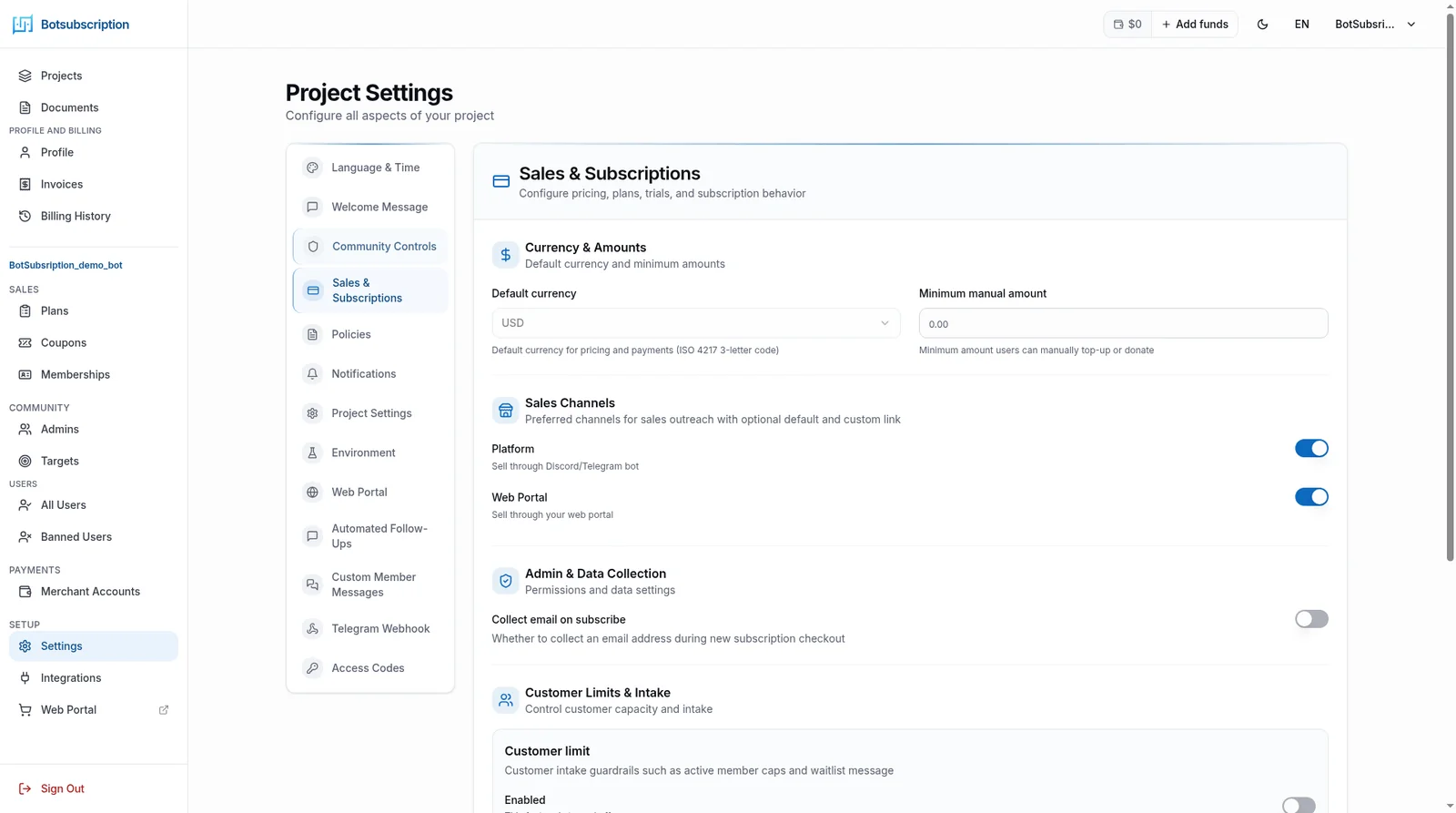
Configure pricing, plans, trials and subscription behavior.
- Currency & Amounts - the Default currency (an ISO 4217 three-letter code, such as USD) and the Minimum manual amount users can top up or donate.
- Sales Channels - sell through the Platform (your Discord or Telegram bot), the Web Portal, or both.
- Admin & Data Collection - Collect email on subscribe asks for an email address during new subscription checkout.
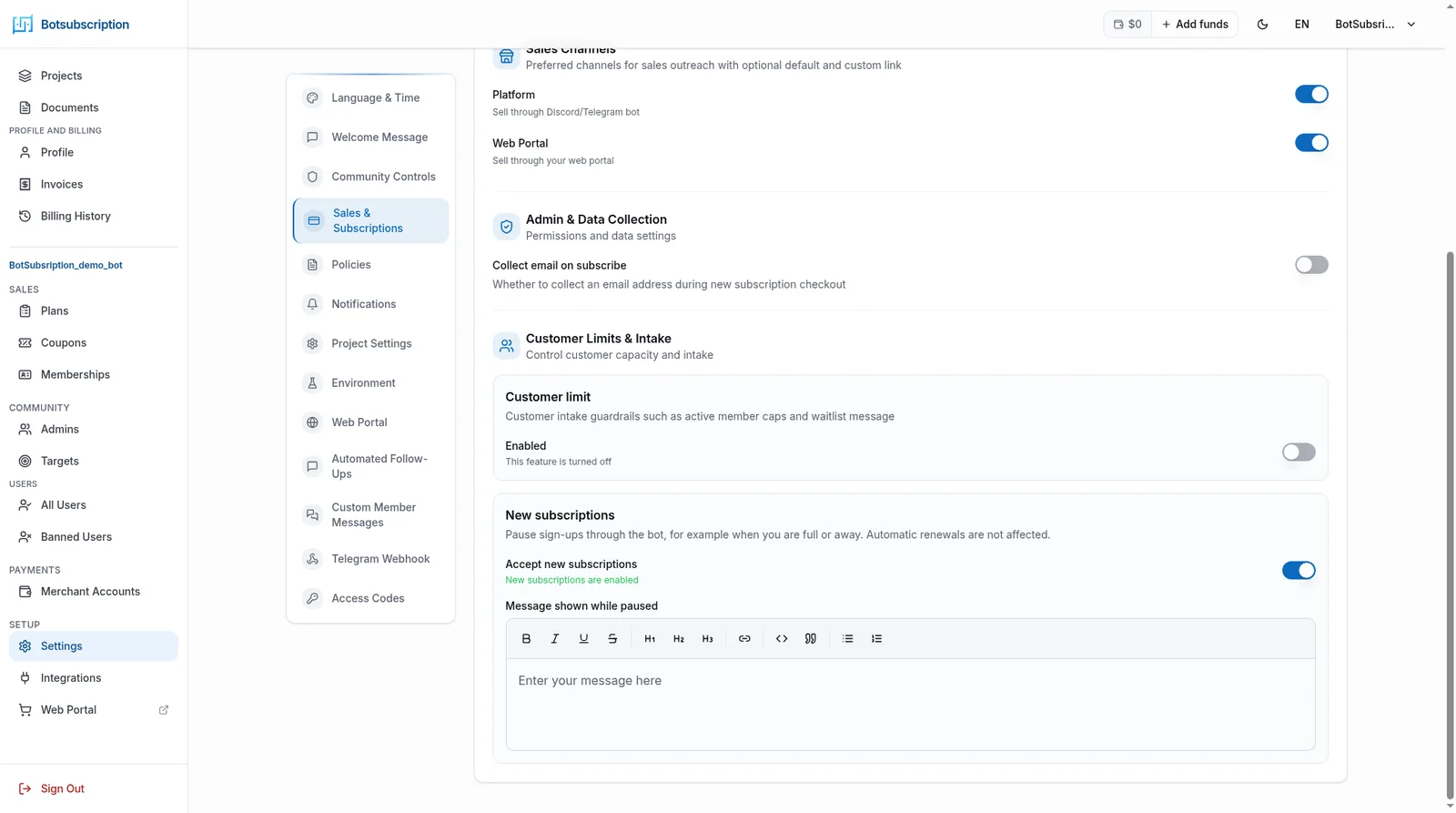
- Customer Limits & Intake - a Customer limit with guardrails such as active member caps and a waitlist message. Under New subscriptions you can pause sign-ups through the bot, for example when you are full or away. Automatic renewals are not affected. You can also set the Message shown while paused.
Policies
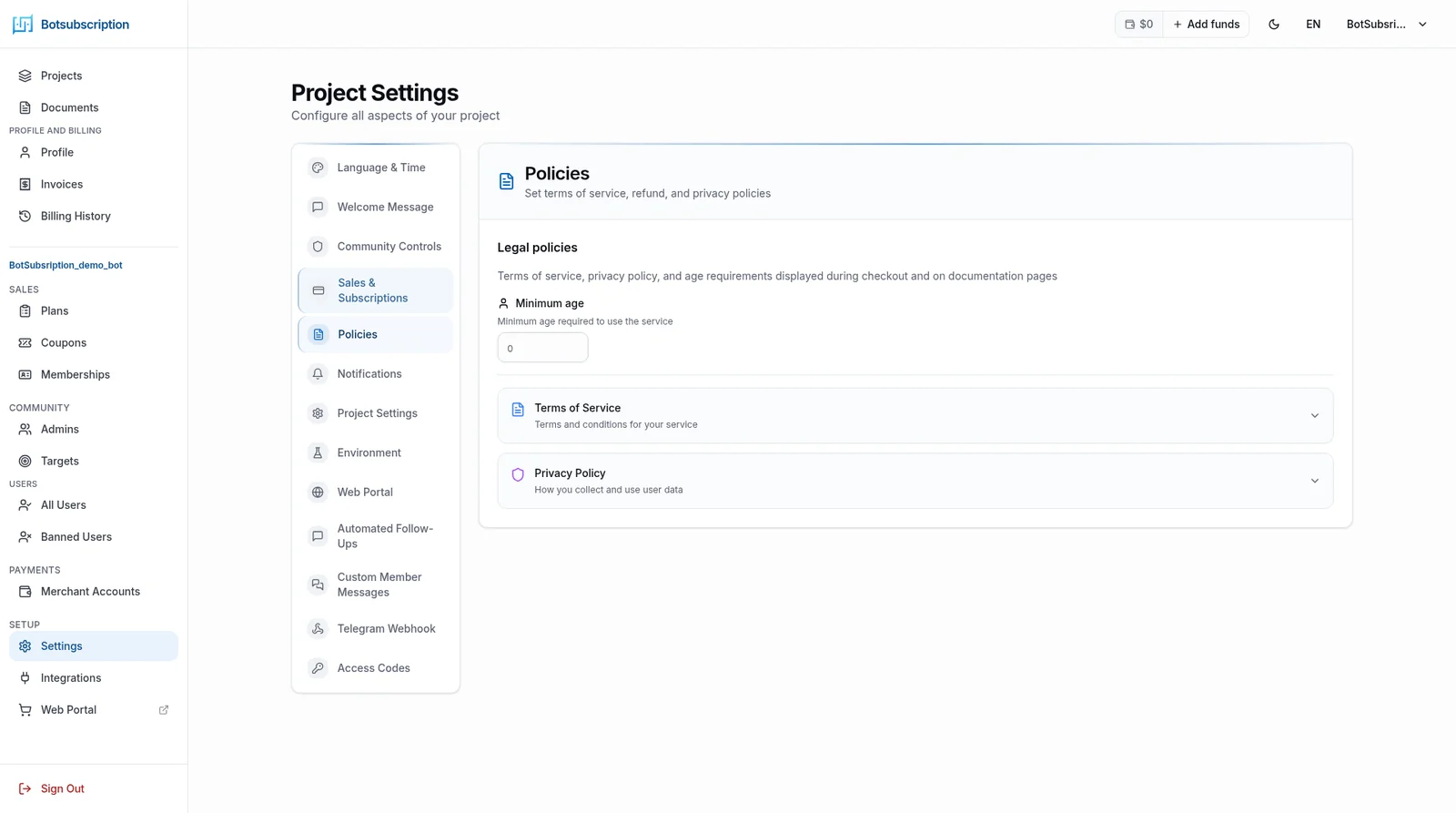
Set the terms of service, refund and privacy policies. These legal policies, plus the age requirement, are displayed during checkout and on documentation pages.
- Minimum age - the minimum age required to use the service.
- Terms of Service and Privacy Policy - expand each one to edit it.
Notifications
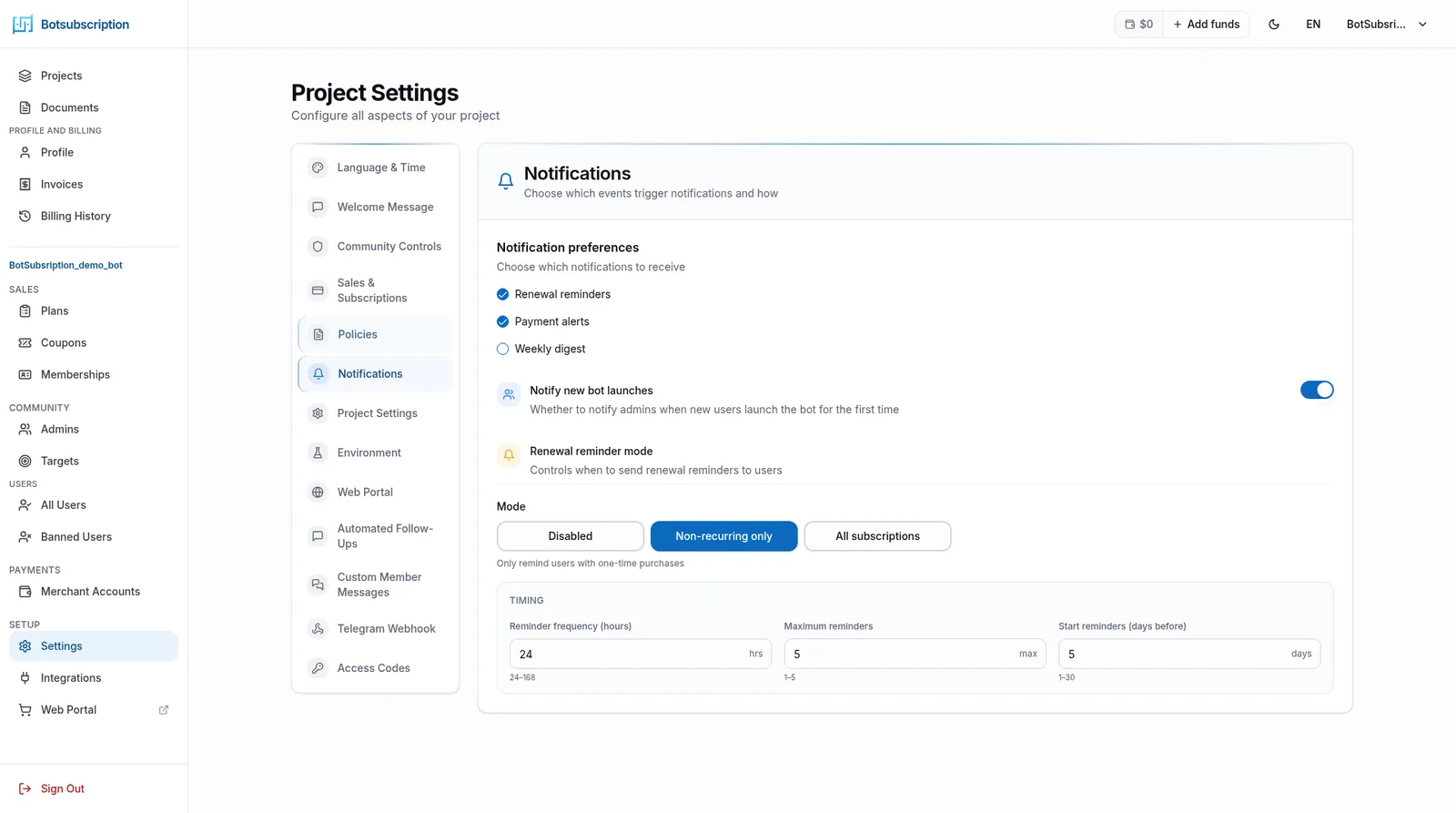
Choose which events trigger notifications and how.
- Notification preferences - Renewal reminders, Payment alerts and Weekly digest.
- Notify new bot launches - notify admins when new users launch the bot for the first time.
- Renewal reminder mode - Disabled, Non-recurring only (remind only users with one-time purchases) or All subscriptions.
- Timing - Reminder frequency (24-168 hours), Maximum reminders (1-5) and when to Start reminders (1-30 days before).
General Project Settings
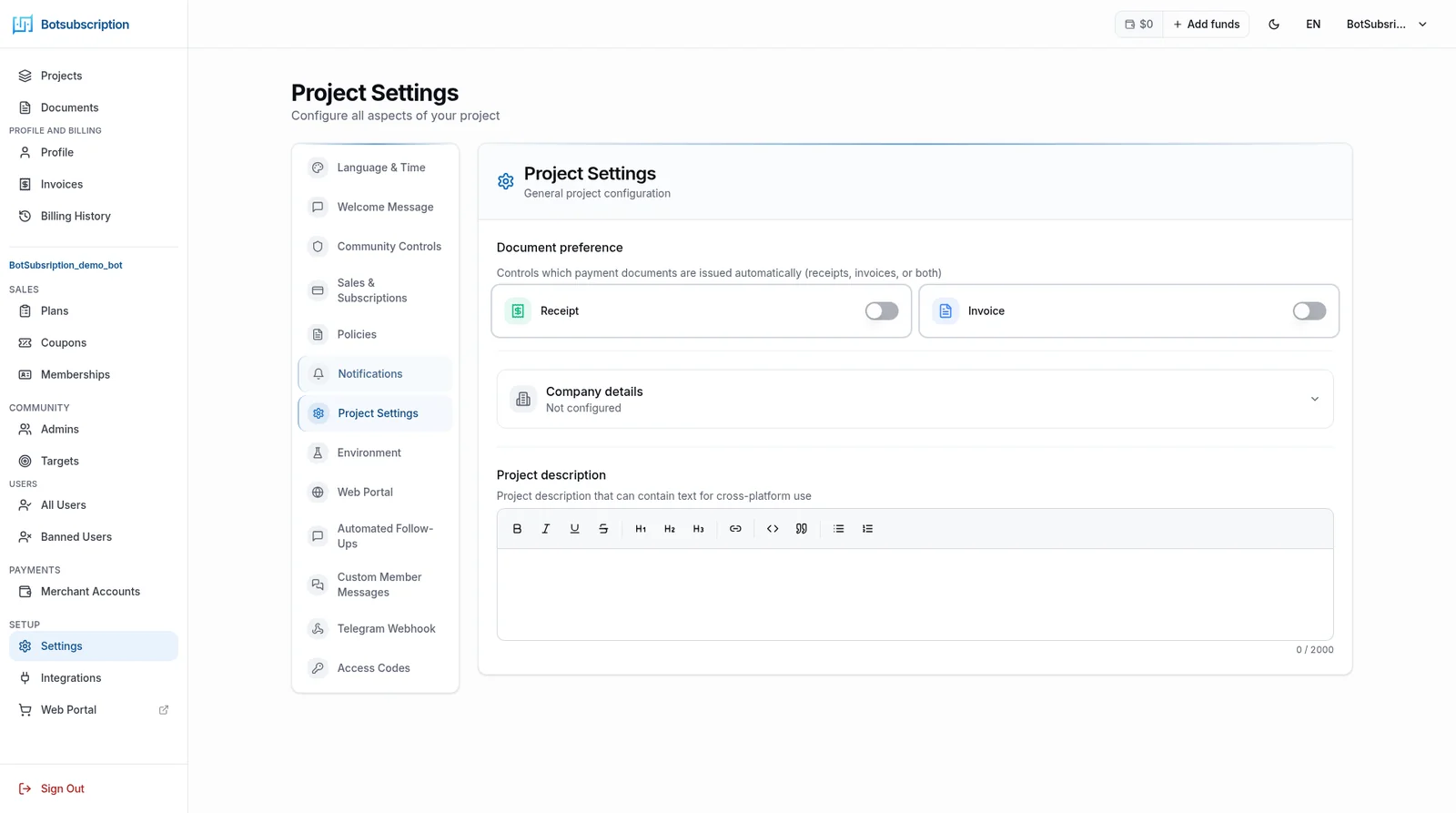
The section labelled Project Settings in the menu holds general project configuration.
- Document preference - controls which payment documents are issued automatically: Receipt, Invoice, or both.
- Company details - the company information for your project.
- Project description - text for cross-platform use, up to 2000 characters.
Environment
Switch between live and test environments. Sandbox is test mode with no real charges. Production is live mode with real payments. The active environment is marked Active.
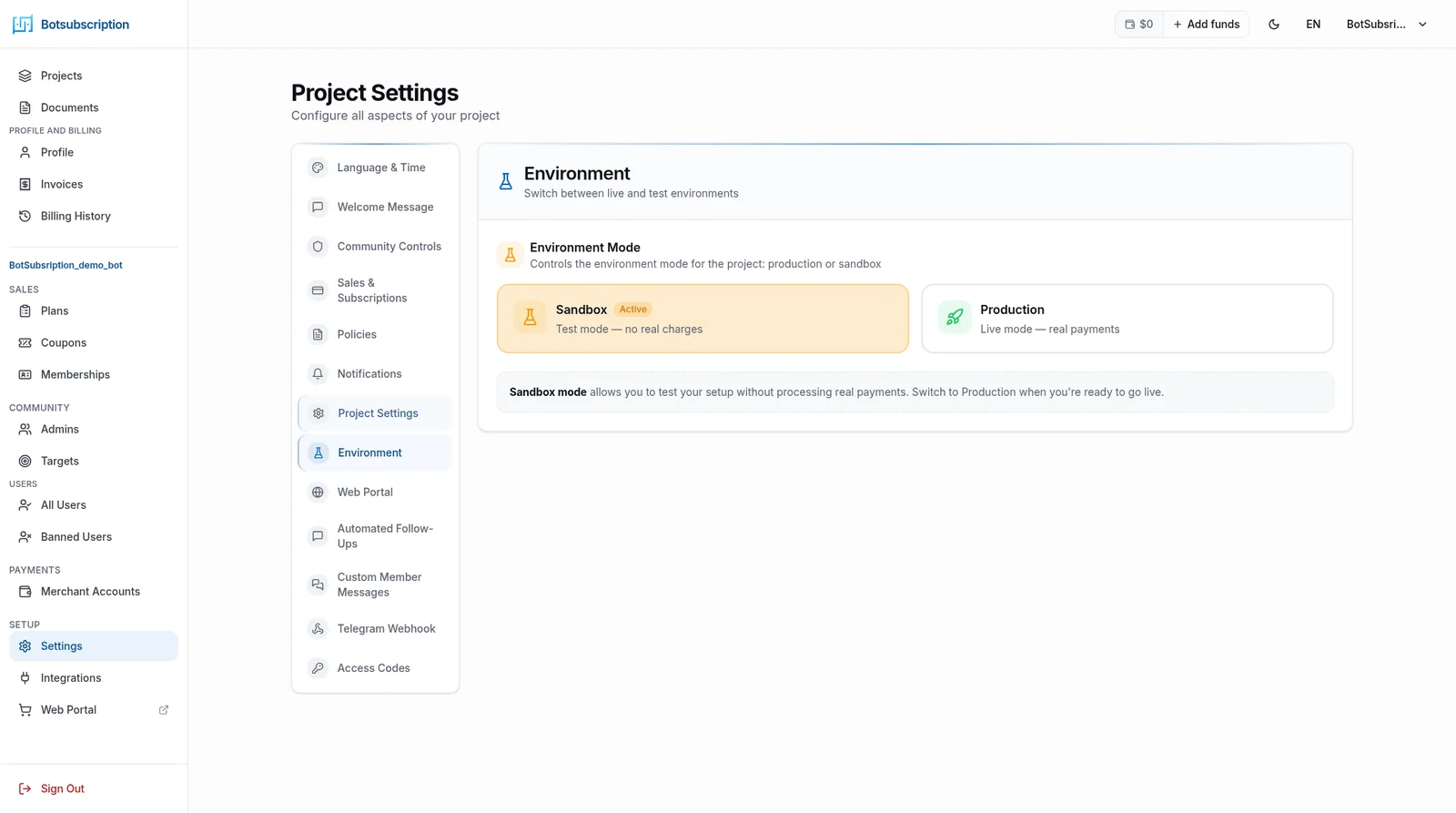
Read Sandbox vs Production to learn which data each environment shares.
Web Portal
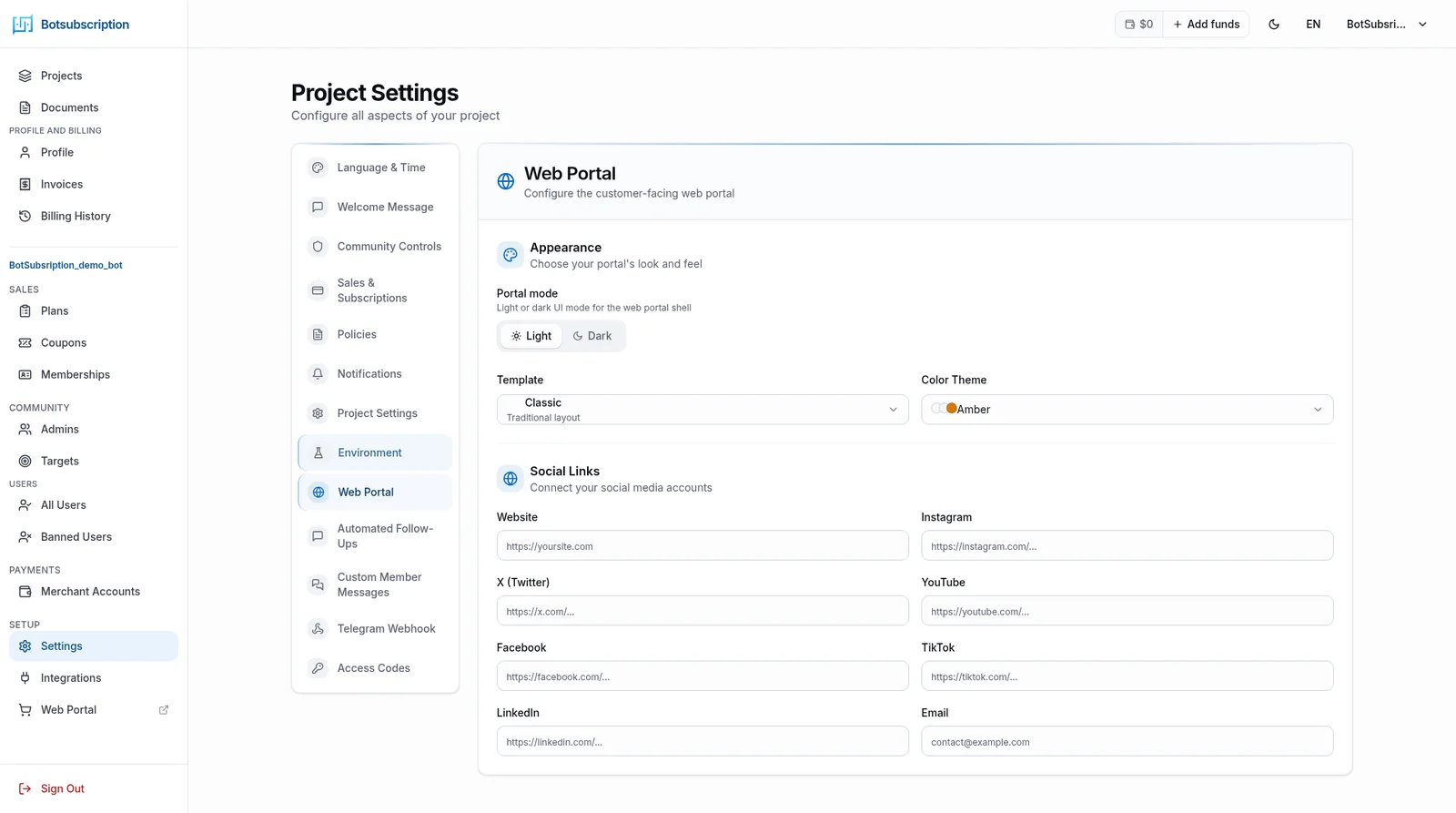
Configure the customer-facing web portal.
- Appearance - Portal mode (Light or Dark), Template (for example Classic) and Color Theme (for example Amber).
- Social Links - Website, Instagram, X (Twitter), YouTube, Facebook, TikTok, LinkedIn and Email.
Learn more about the portal in Web Portal for Subscriptions.
Automated Follow-Ups
Send one message after a member's first bot interaction. It is skipped if they have an active membership when it is due.
- First interaction - the follow-up that runs after a member's first bot interaction.
- Simple fallback message - used when no active custom message matches the member's language. It needs both a Follow-up delay and a Follow-up message.
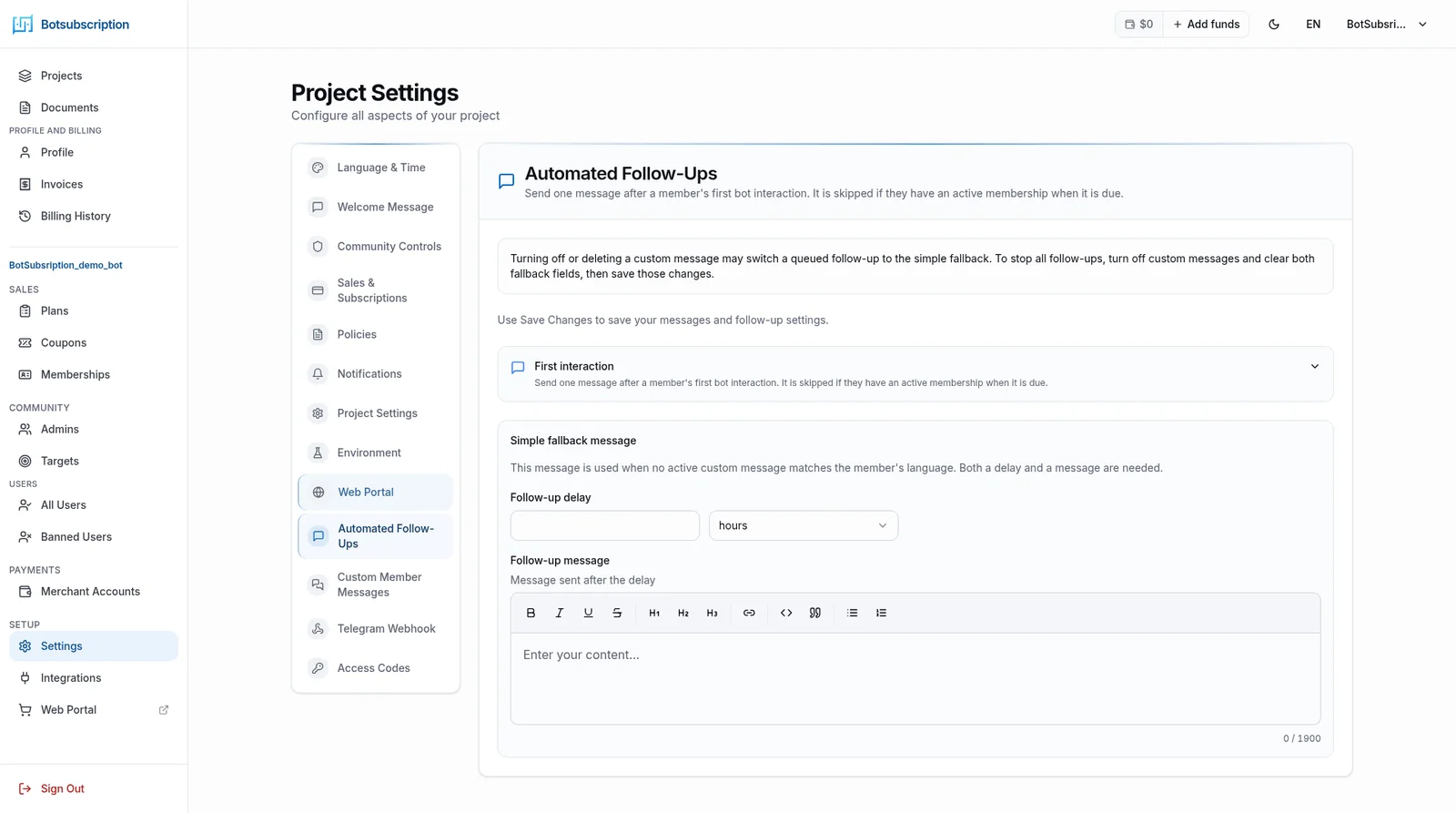
Turning off or deleting a custom message may switch a queued follow-up to the simple fallback, if a fallback message and delay are set. To stop all follow-ups, turn off custom messages and clear both fallback fields, then save those changes.
Custom Member Messages
Per-event messages with language versions and scheduled follow-ups. Expand an event to edit its message:
- Membership activated - sent when a member's subscription starts.
- Membership renewed - sent when a member's subscription renews for another period.
- Membership ended - sent when a member's access ends.
- Auto-renew turned off - sent when a member turns off auto-renew but still has access.
- Payment failed - sent when a member's payment does not go through.
- Renewal reminder - sent ahead of a renewal, on your reminder schedule.
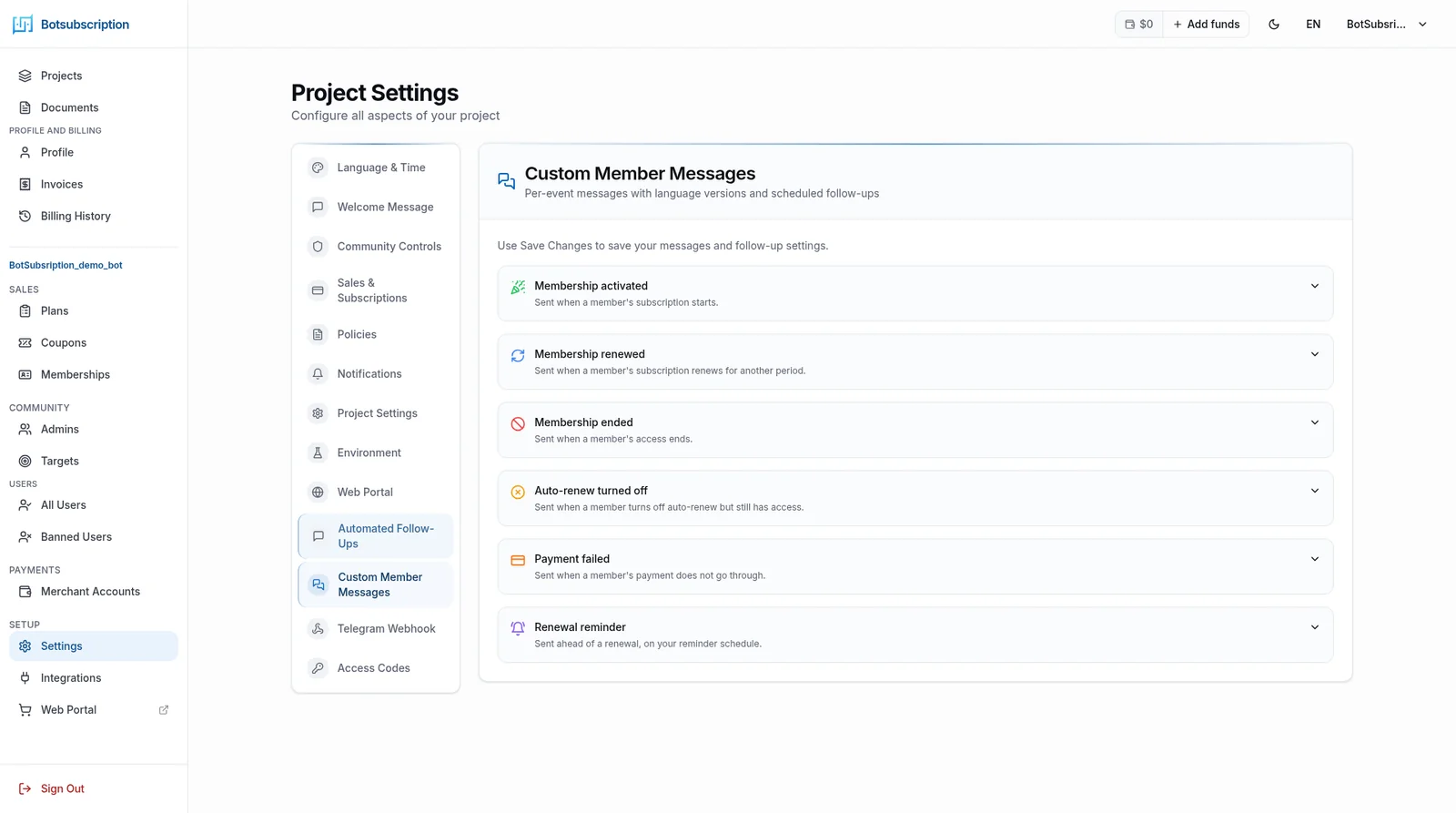
Use Save Changes to save your messages and follow-up settings.
Telegram Webhook
Diagnose and repair the bot's Telegram webhook registration. BotSubscription checks the registration at Telegram live and shows a status such as Healthy, plus a Registration summary and any Findings.
- Re-register webhook points Telegram back at the expected URL. Use it if the URL drifted or the registration is missing.
- Rotate webhook secret replaces the webhook secret. Rotate it only when you have a reason to replace it. Rotating may briefly interrupt updates while Telegram switches over.
If your Telegram bot stops answering, also see Telegram bot not responding.